
Word Cloud Generator
Free, no sign-up, nothing uploaded: paste text or a word list and your browser counts the words and redraws the cloud as you type, with a table of the 12 biggest words and their counts, and a CSV of the counts.
Free · runs in your browser · nothing is uploaded
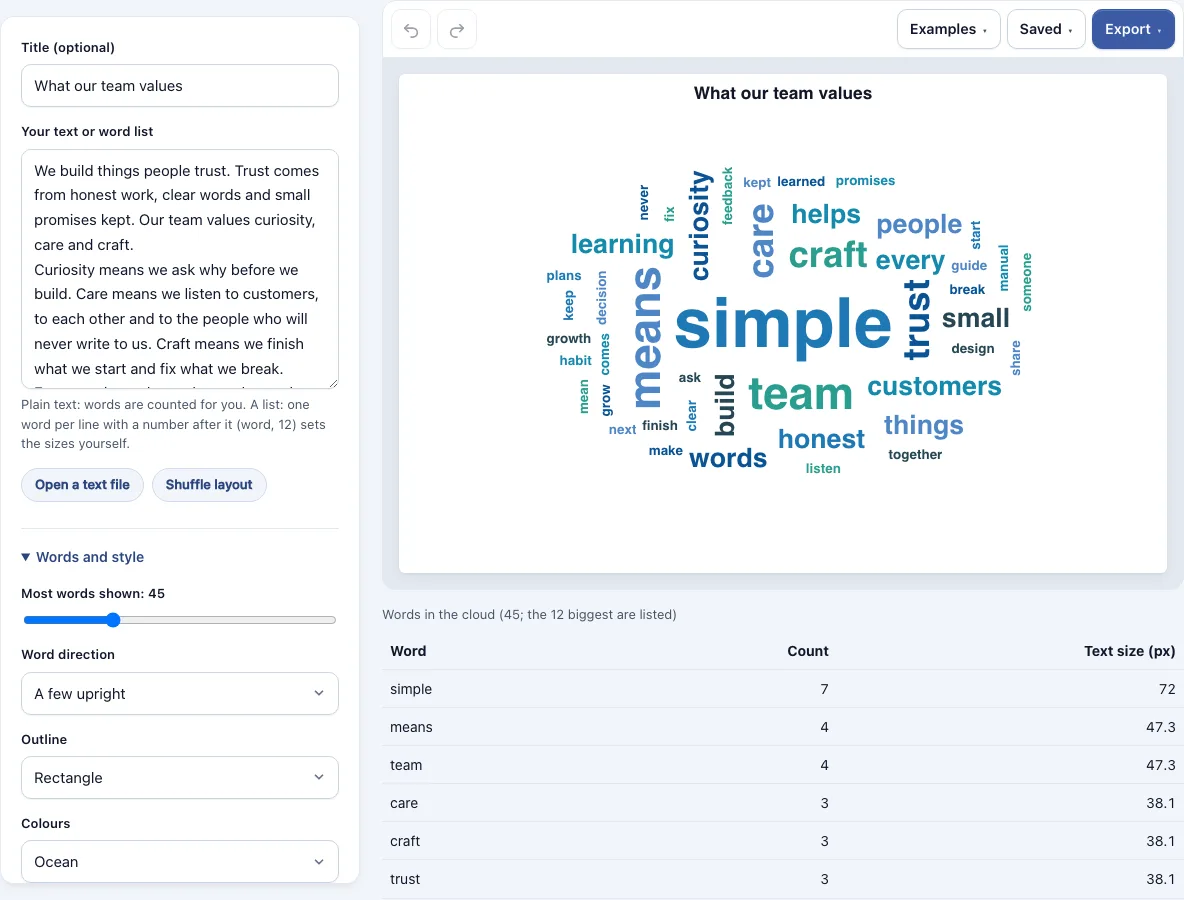
How to use the Word Cloud Generator
- Paste your text into the text box, or open a .txt, .csv, .tsv or .md file (up to 5 MB).
- Set Shortest word to the minimum letter count you want (1 to 8, default 3).
- Set Most words shown (5 to 150, default 60).
- Choose a stop word list for English, Spanish, French, German, Portuguese or Italian, or select Keep every word.
- Pick a word direction: All across, A few upright, Mixed both ways or All upright.
- Set Smallest text and Largest text (defaults 14 and 72 px).
- Choose a colour scheme: Ocean, Sunset, Forest, Candy or Dark grey.
- Choose a picture size: Landscape 800x520, Square 640x640, Wide 1200x600 or Portrait 520x800.
- Click Shuffle layout if you want a new arrangement, then check the table under the cloud. It lists the 12 biggest words with their counts and text sizes. A button downloads the counts as a CSV file: it holds the words your settings keep, up to Most words shown, which can include words the cloud had no room to draw.
- Download the picture as PNG at 1x, 2x or 4x, as SVG, or as a picture PDF.
Your work autosaves in this browser, and the Saved menu keeps named copies of each cloud. A share link holds the whole document inside the link itself, so the person you send it to sees the same cloud without an account.
How do I create a word cloud from a list of counts?
You can skip plain-text counting by typing one word and a number per line, such as “simple, 7”. The tool switches to list mode when at least 60% of your lines follow that pattern, and it sizes each word by the number you gave. A colon or a tab works as the separator too.
- Enter each word on its own line with its weight, for example “team, 4”, “care: 3” or a tab between the two.
- Make sure at least 60% of lines follow this pattern. Otherwise the tool treats the whole input as plain text and counts the words itself.
- Set Most words shown high enough to include every row, up to 150.
- Check the table under the cloud to confirm each word’s count and text size.
How does a word cloud decide how big each word is?
Each word’s text size depends on its count compared with the lowest and highest counts in your text. The most frequent word gets the Largest text value, and the least frequent gets the Smallest text value. Words in between follow a curve, so they look larger than a straight-line scale would make them.
The formula is: size = Smallest + (Largest − Smallest) × ((count − lowest) ÷ (highest − lowest))^0.8. The built-in sample text “What our team values” gives these results with the default sizes:
| Word | Count | Text size (px) |
|---|---|---|
| simple | 7 | 72 |
| team | 4 | 47.3 |
| means | 4 | 47.3 |
| care | 3 | 38.1 |
| craft | 3 | 38.1 |
| trust | 3 | 38.1 |
| any word used once | 1 | 14 |
The table under your own cloud lists the 12 biggest words with the same values for your text, and the word counts (every word your settings keep, up to Most words shown) download as a CSV file.
Which words are left out of a word cloud?
Common words on the stop word list for your language are removed, and so are words shorter than the Shortest word setting. The tool then draws only the number set by Most words shown. Choose Keep every word to include the common words as well.
If the remaining words cannot fit on the page, the tool tells you how many it left out. Raise the picture size or lower Most words shown to fit more. Chinese and Japanese text is split into words by your browser’s word breaker, and single characters and common function words are left out.
Will the same text give the same word cloud?
The layout is repeatable, so the same text and settings always produce the same picture. The biggest word sits in the centre, and each following word walks an Archimedean spiral outward until its box touches nothing else. Shuffle layout produces a new arrangement while keeping the same sizes and counts.
Frequently asked questions
Can an AI chatbot make a word cloud?
Some can, but you do not need one. Paste your text into the Word Cloud Generator, and it builds the cloud in your browser without an account.
What is the best free word cloud generator?
The right choice depends on what you need. This page offers free PNG, SVG and picture PDF exports with no watermark, plus colour, direction and picture size controls, so you can judge the output for yourself.
Is a word cloud generator really free?
Yes, the tool is free and needs no account. Results may be used commercially without attribution. Pro adds outline shapes (circle, heart, diamond and triangle), a vector PDF and a .drawio file that holds the cloud as one picture, not as editable shapes.
Can I make a word cloud from a Word document?
Save the document as a .txt file, or copy its text into the box. The tool opens .txt, .csv, .tsv and .md files up to 5 MB and uses only the first 200,000 characters.
Can I use a word cloud in a PowerPoint presentation?
Yes. Download the cloud as a PNG and insert it into your slides as a picture. Choose a picture size that suits your slide, such as Wide 1200x600 for a full-width layout.
Can I make a word cloud from Chinese or Japanese text?
Yes. Your browser’s word breaker splits Chinese and Japanese text into words, single characters and common function words are left out, and the same count and size rules apply. A browser without a word breaker falls back on two-character pieces.
Is my text uploaded anywhere?
No. The tool runs entirely in your browser, and nothing you type or open is sent to a server.
Related tools
Chart Tools & Graphs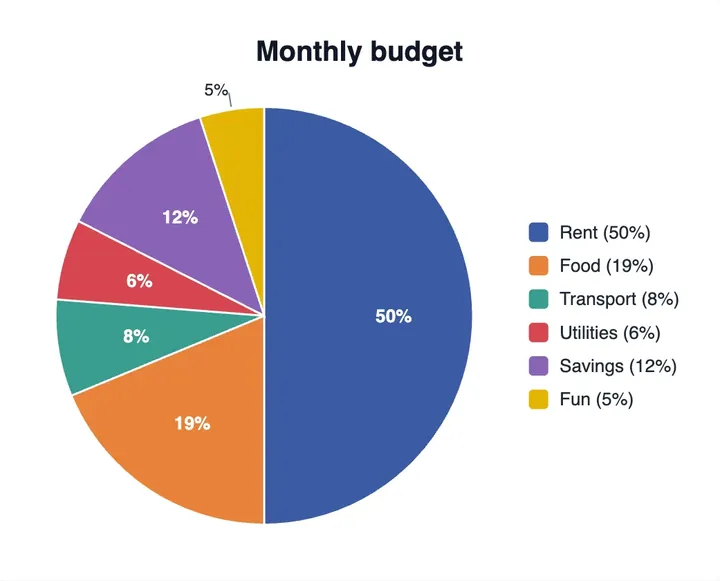
Pie Chart Maker
use it to show each part of a whole as a slice.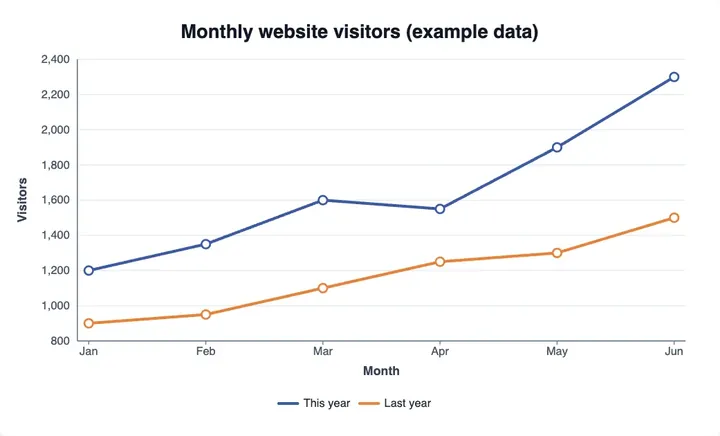
Line Graph Generator
use it to plot values that change over time.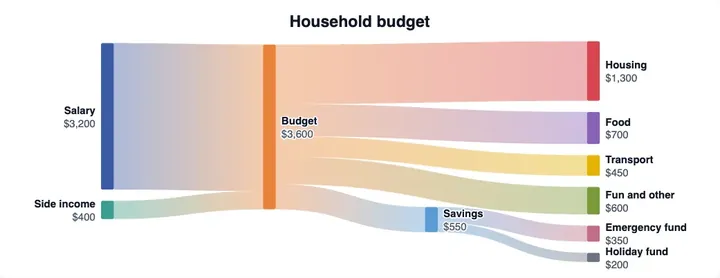
Sankey Diagram Generator
use it to show how quantities flow from one group to another.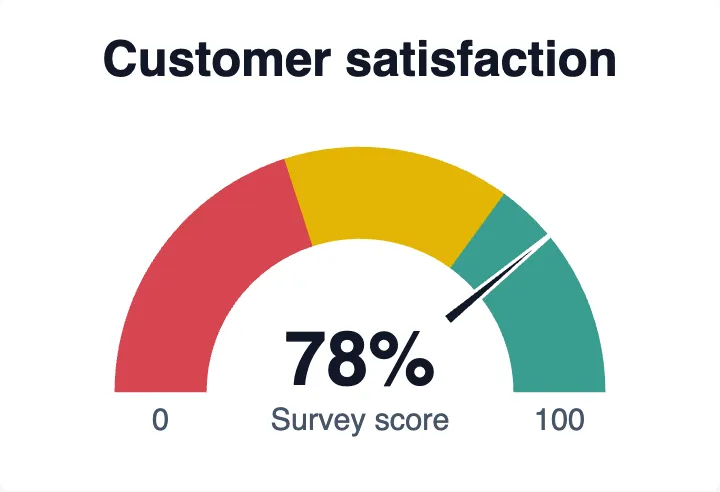
Gauge Chart Maker
use it to show a single value against a range, such as a progress score.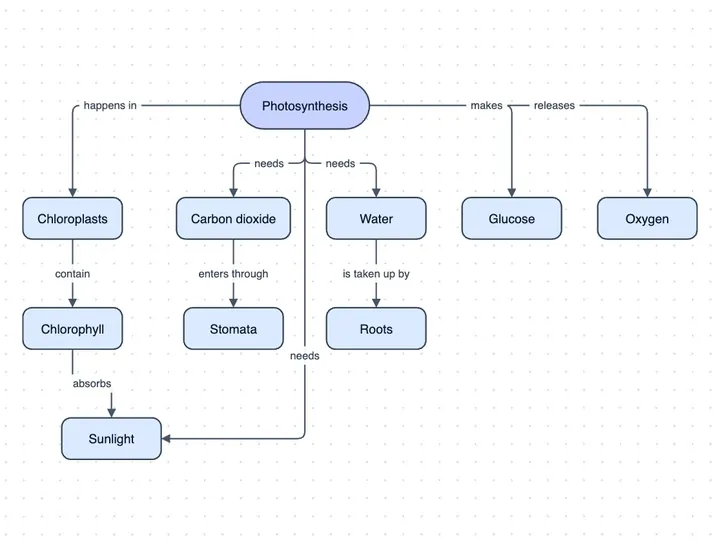
Concept Map Maker
use it to link related ideas with labelled connections.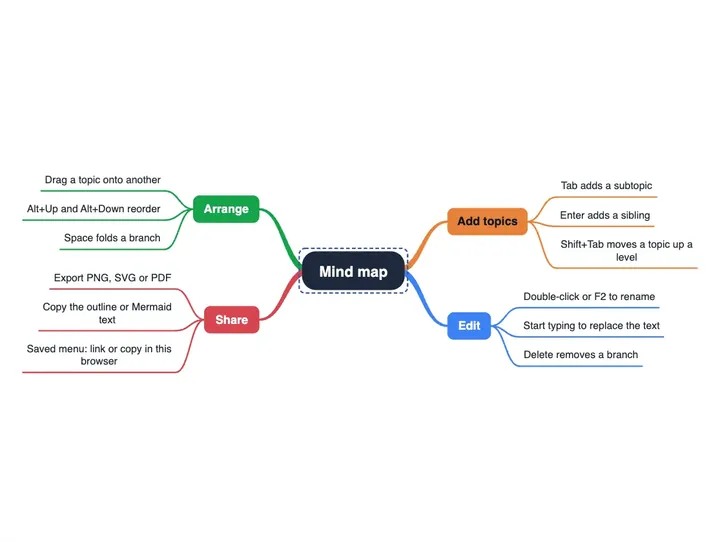
Mind Map Maker
use it to brainstorm a topic outward from a central idea.