
Wireframe Maker
Pick a ready screen or add parts from the column beside the canvas, drag them into place and export the wireframe.
Free · runs in your browser · nothing is uploaded
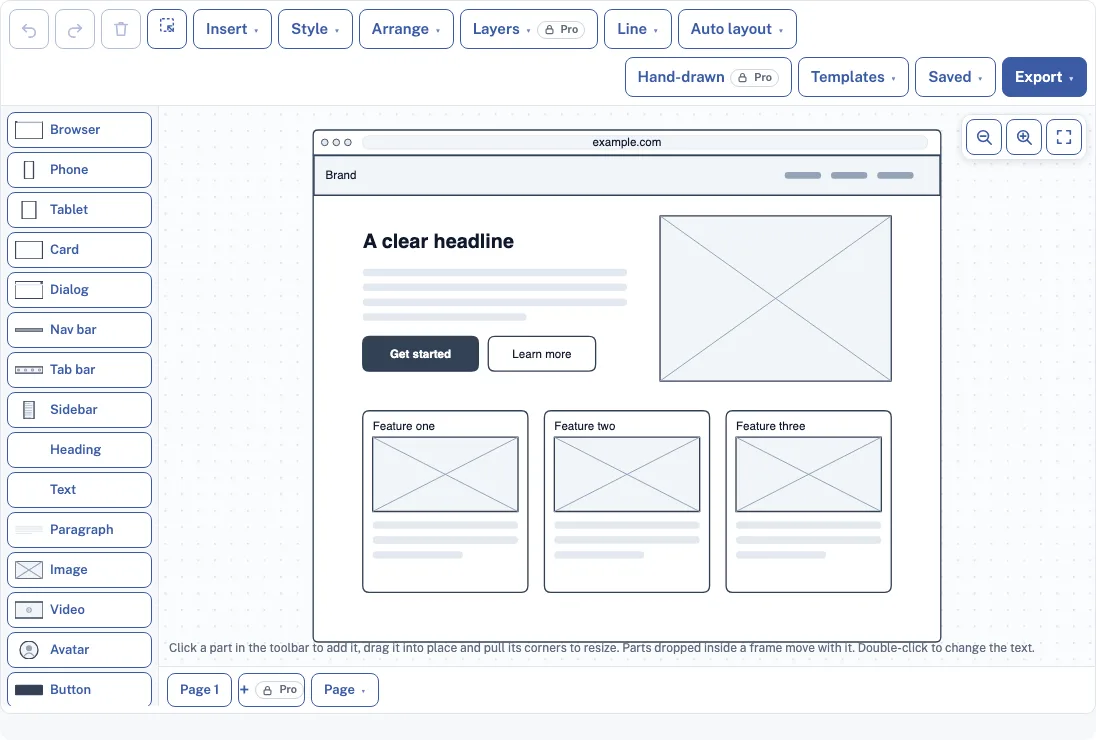
How to use the Wireframe Maker
- Open the page. No account is needed, and the canvas is ready to use.
- Pick a starting point from Templates: landing page, admin dashboard, mobile sign-in, mobile feed or contact form.
- Click any part in the column beside the canvas to add it. On a phone, the parts appear in a strip instead.
- Drag a part to move it, and pull a corner to resize it.
- Double-click a part to change its text. The part keeps its size when the text changes.
- Drop a part onto a frame such as Browser, Phone, Tablet, Card or Dialog. It then moves with the frame.
- Open the Arrange menu to align, distribute, group, change z-order or snap to grid. Under Auto layout, choose Tidy to snap parts to a 10 pixel grid.
- Draw an arrow between two parts or screens by dragging the blue dot, so the flow between screens sits on one canvas.
- Add a Note part to leave a yellow annotation for your team.
- Open the Export menu to save a PNG (also 2x or 4x), an SVG or a PDF.
The Saved menu includes “Copy link to this diagram” if you want to send your wireframe to someone. The latest version autosaves in this browser, so your draft stays there when you come back.
What is a wireframe?
A wireframe is a simple, low-detail drawing of a page or screen that shows where content and controls go. It uses boxes, labels and placeholder text instead of color, photos or final fonts, so a team can agree on structure before design work starts.
Because a wireframe leaves out visual style, feedback stays on layout: where navigation sits, which content comes first, and whether a form asks for too many fields. A wireframe can cover one screen or a whole website wireframe with several pages linked together.
What are wireframes used for?
Wireframes help a team agree on what goes on a screen and where, before design or code is written. Designers test layouts and plan user flows with them, while product managers and developers check that a feature covers the steps people need.
How do I create a wireframe?
Start with the one job the screen must do, list the content it needs, and block out where each piece goes. Work from the top of the page down, keep the layout rough, and review the draft with the people who will use it.
- Write down the main task for the screen, such as signing in or comparing plans.
- List the content and actions it needs, in order of importance.
- Sketch the main areas (header, navigation, content, footer) as boxes.
- Place the controls in each area, starting with the most important action.
- Add labels and placeholder text, and leave out final copy and color.
- Link the screens in the order a person moves through them.
- Share the draft, note open questions, and settle them before design starts.
Wireframe vs mockup vs prototype
A wireframe shows structure in plain form, a mockup adds the visual design, and a prototype adds interaction so people can click through it. Each stage answers a different question, so most teams move from wireframe to mockup to prototype as decisions get settled.
| Wireframe | Mockup | Prototype | |
|---|---|---|---|
| Main question | Where does everything go? | What does it look like? | How does it behave when used? |
| Level of detail | Low: boxes, labels, placeholder text | High: color, type, images | Varies, with clicks and transitions added |
| Clickable | No | No | Yes |
This tool makes static wireframes. It does not make clickable prototypes.
Frequently asked questions
Is there a free wireframe tool?
Yes. This Wireframe Maker needs no account and exports PNG, SVG and PDF files with no watermark.
Are there wireframe templates?
Yes. Templates holds five ready screens: landing page, admin dashboard, mobile sign-in, mobile feed and contact form. Open one, then change the parts, text or layout to fit your idea.
Can I wireframe a phone app?
Yes. Add a Phone frame from the parts column, then place parts inside it. The mobile sign-in and mobile feed templates give you a starting point.
Can I show several screens?
Yes. Arrows between parts or screens work like they do in other diagram editors, so you can draw a screen flow on one canvas. Pro adds extra pages, with one screen per page.
Can I make a clickable prototype?
No. The tool draws static screens and has no interactive or clickable mode. To show a flow, use arrows between screens and add a Note part that describes what a click should do.
Can I make my wireframe look hand-drawn?
Yes, on Pro. The Hand-drawn button redraws the whole wireframe in a sketch style and keeps that look in PNG, SVG, PDF and .drawio files. Before you decide, the button shows a preview made from your own wireframe.
Related tools
Software & Network Diagrams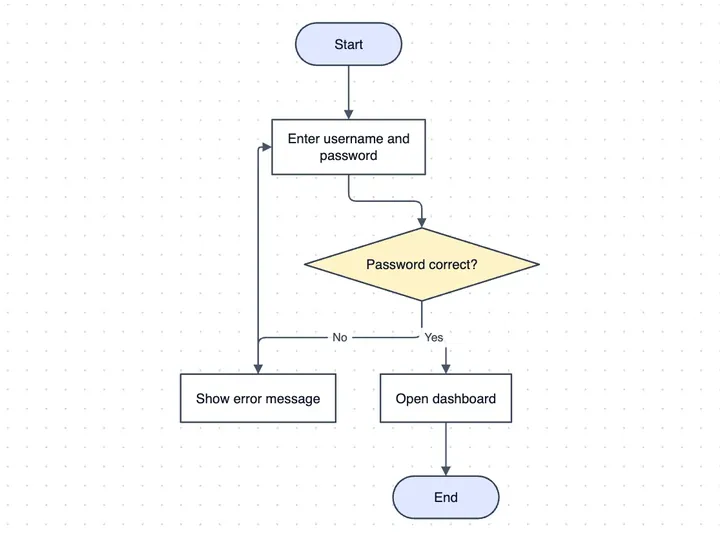
Flowchart Maker
use it to map the steps a user takes between screens.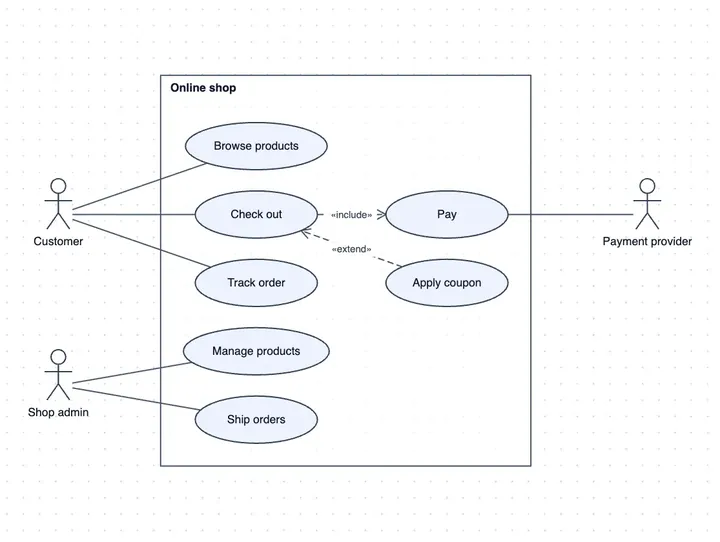
Use Case Diagram Maker
use it to list what users can do before you draw screens.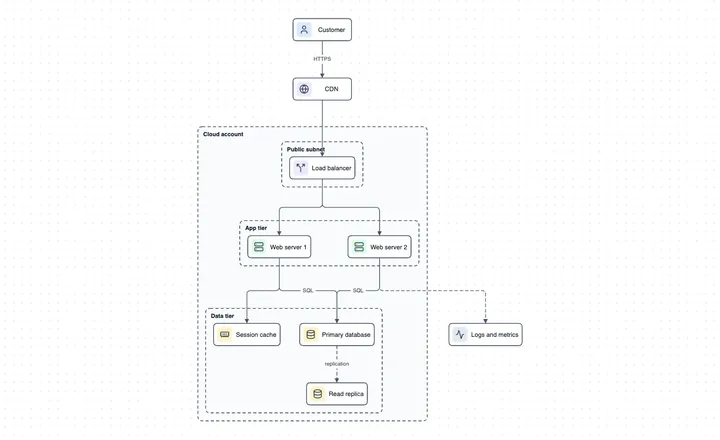
System Architecture Diagram Maker
use it to show the services behind the screens.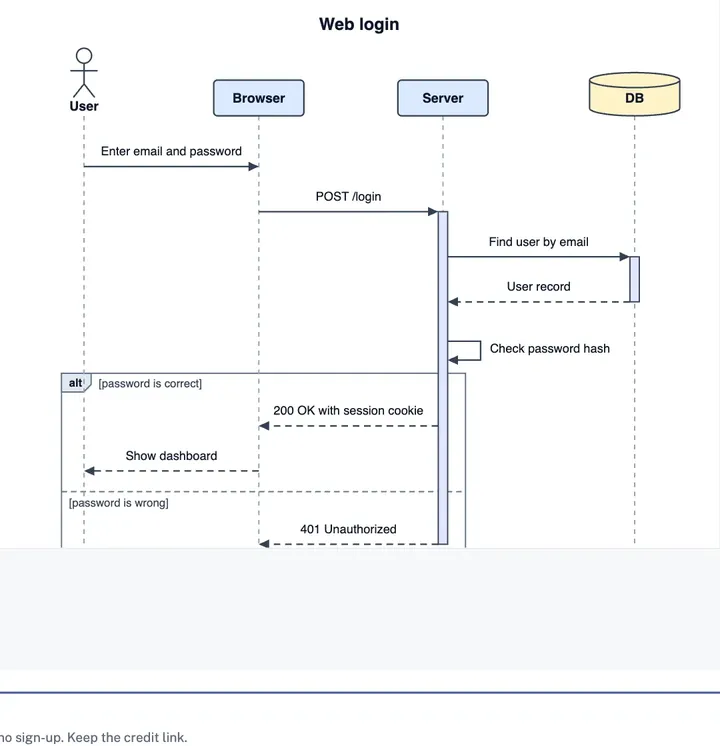
Sequence Diagram Maker
use it for the messages behind one screen action.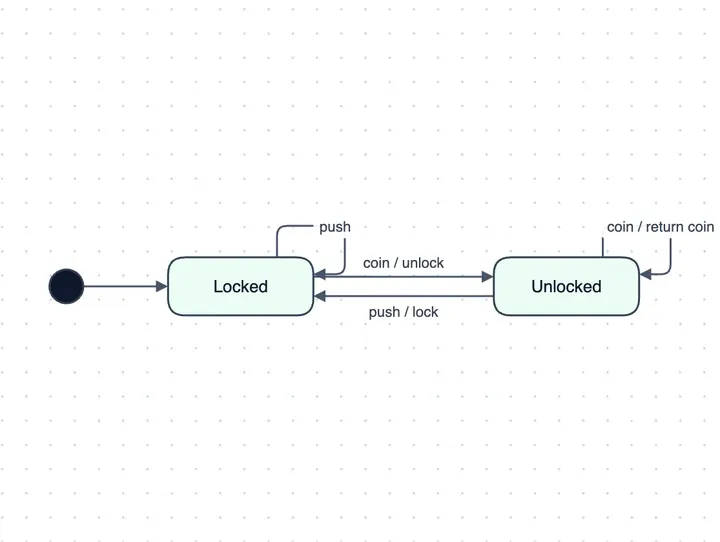
State Diagram Maker
use it to map the states of a screen or a form.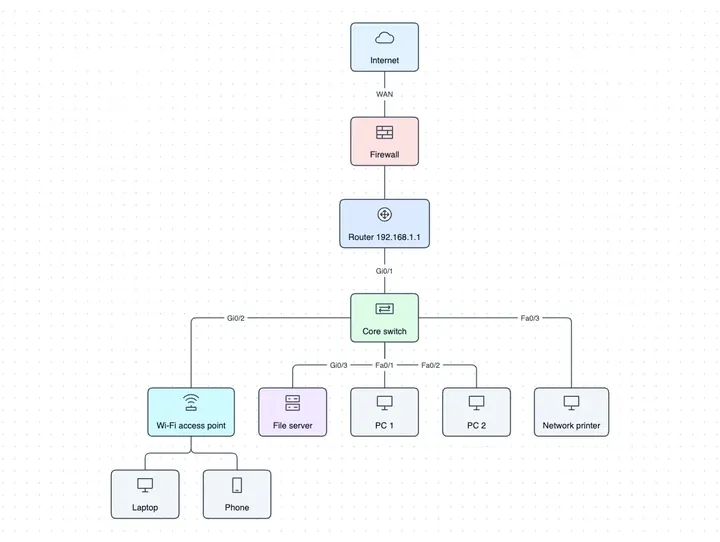
Network Diagram Maker
use it to show devices and links.