Use Case Diagram Maker
Draw a UML use case diagram with actors outside the system boundary and use cases inside it, and let the checker catch UML mistakes. Export PNG, SVG or PDF for free.
Free · runs in your browser · nothing is uploaded
This free Use Case Diagram Maker lets you draw a UML use case diagram in your web browser, with no account or sign-up. You place actors and use cases, join them with standard UML arrows, and export the result as an image or PDF.
The diagram is not uploaded anywhere. The latest version saves automatically in your browser, so you can close the tab and return to it later. You can start from one of eight templates, such as Online shop or ATM, or begin on a blank canvas. Live checks under the drawing flag common mistakes, such as an actor with no use case, while you work.
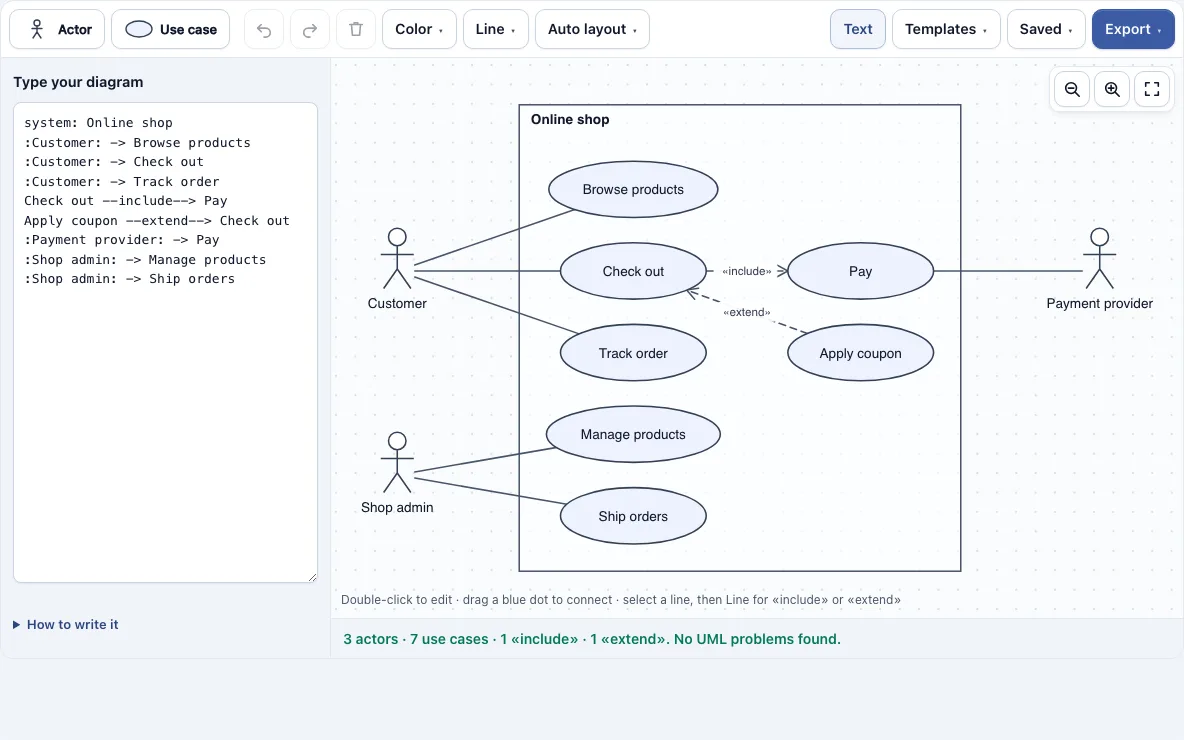
How to use the Use Case Diagram Maker
To make a use case diagram, pick a template or start blank, place actors outside the system boundary and use cases inside it, connect them, then set «include», «extend» or generalization with the Line menu. Read the live UML checks before you export.
- Open the page and choose a template, such as ATM, or start from a blank canvas.
- In the toolbar, click Actor (a stick figure) or Use case (an ellipse). Actors go outside the box and use cases go inside it.
- Double-click the system name on the box to rename it. Double-click any shape or arrow to edit its text. Press Enter to save, or Shift+Enter for a line break.
- Drag one of the small blue dots on a shape’s edge onto another shape. The new line is a plain association. To change it, click the line, open the Line menu and pick Directed association, «include», «extend» or Generalization.
- Read the checks under the drawing. Any shape with a problem is outlined in red.
- Choose Tidy up in the Auto layout menu to arrange the drawing. It puts primary actors on the left of the box, supporting actors such as a payment provider on the right, and included or extending use cases next to their base use case.
- Open the Export menu and choose PNG, SVG or PDF.
Ctrl+Z undoes, Ctrl+C and Ctrl+V copy and paste, and the Saved menu keeps named copies and share links.
What is a use case diagram?
A use case diagram is a UML diagram that shows what the users of a system want to do with it. It draws each user as an actor, each goal as a use case, and a line between an actor and every use case that actor takes part in. Teams use it early in a project to agree on what a system must do before anyone designs the details.
Each use case is named as a short verb phrase, such as “Withdraw cash” or “Apply coupon”. The diagram shows what the system does, not the order of steps or how the code works. For step order, an activity diagram is a better fit. For messages passed between parts of a system over time, use a sequence diagram.
What are the elements of a use case diagram?
A use case diagram has seven elements: actors, use cases, a system boundary, associations, include, extend and generalization. Each one has a standard UML symbol, so anyone who knows UML can read the diagram. The table below lists them.
| Element | Symbol | What it means |
|---|---|---|
| Actor | Stick figure with the name below | A user or external system that interacts with the system |
| Use case | Ellipse | An action or goal the system provides |
| System boundary | Box titled with the system name | Marks what is inside the system. Use cases go inside, actors outside |
| Association | Plain line | Links an actor to a use case it takes part in |
| Include | Dashed arrow labelled «include» | The base use case always contains the target use case |
| Extend | Dashed arrow labelled «extend» | An optional use case adds to the base use case |
| Generalization | Line with a hollow triangle | A specialised actor or use case points to the general one |
Include and extend are the two relationships people confuse most. An «include» arrow points from a base use case to a use case that always happens as part of it. Withdraw cash includes Enter PIN, because every withdrawal needs a PIN. An «extend» arrow points from an optional use case back to the base use case it sometimes adds to. Print receipt extends Withdraw cash, because a customer may or may not want one. In short, include is required and extend is optional.
Generalization links a specialised actor to a general one. A Librarian is a Member, so the Librarian arrow points to Member and the Librarian inherits its use cases.
Frequently asked questions
What is a use case and an example?
A use case is one thing a user can do with a system, named as a short goal. In an ATM diagram, the Customer actor is linked to the use case Withdraw cash. Withdraw cash includes Enter PIN, since every withdrawal needs one, and Print receipt extends it, because printing is optional.
What tool can I use to create a use case diagram?
You can use the Use Case Diagram Maker on this page. It runs in your web browser, is free, and needs no account. You can draw with the toolbar shapes or type the diagram as text, then export it as an image, SVG or PDF.
Can I type a use case diagram instead of drawing it?
Yes. The text panel uses a syntax close to PlantUML. Write system: Online shop to name the boundary, :Customer: for an actor, and (Check out) or any other name for a use case. Use -> for an association, --include--> for «include», --extend--> for «extend», and --is a--> for generalization, with one connection per line.
Which mistakes does the checker catch?
The checks outline the problem shapes in red. They flag an «include» or «extend» arrow touching an actor, a generalization between an actor and a use case, two actors or two use cases joined by a plain line, an actor with no use case, a use case linked to nothing, and a diagram with no actor. With no problems, the panel shows a count such as “3 actors · 7 use cases · 1 «include» · 1 «extend»”.
Can I use my use case diagrams commercially?
Yes. Diagrams you make here are yours to use for personal, school and commercial work, including specifications, reports, slides and client projects. No credit is required. The only thing you may not do is copy the tool or the site itself to run a competing service; see the terms.
Can I export a use case diagram without a watermark?
Yes. Free exports carry no watermark and include PNG, high-resolution PNG, SVG, PDF and copying the image to the clipboard. Pro adds a Vector PDF with selectable text and a .drawio file that opens in diagrams.net (draw.io) with editable shapes.
Related tools
- Sequence Diagram Maker: use it when you need the order of messages between objects over time.
- Activity Diagram Maker: use it to show the steps and decisions inside a single use case.
- State Diagram Maker: use it to map the states an object moves through.
- UML Class Diagram Maker: use it to model the classes and their relationships in the system.
- ER Diagram Maker: use it to plan database tables and how they relate.
- Data Flow Diagram Maker: use it to show how data moves between processes and stores.
- Flowchart Maker: use it for a general step-by-step process with yes or no decisions.