Timeline Maker
Type a date and a title for each event; the timeline sorts them and redraws as you type.
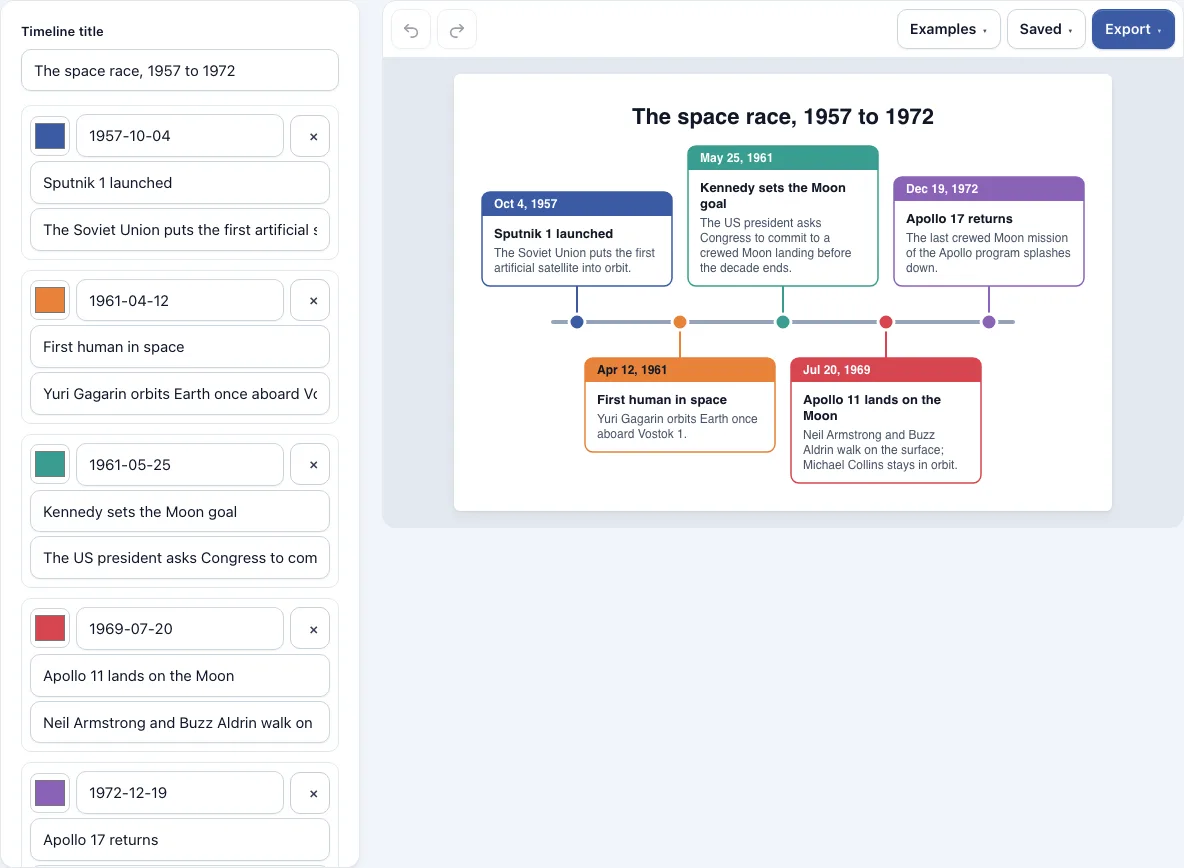
How to use the Timeline Maker
You can start from the sample already on the page, load an example, or type your own events.
- Open the Examples menu to load Space race, Project plan or My year in school. To start fresh, use Saved and choose the option for a new empty chart.
- In the list on the left, type a date, a title and an optional note in the first row.
- Click + Add event to add a row. You can also press Enter in the last note box to add the next event.
- Repeat until you have your events. You can have up to 60. Type them in any order, because they sort by date automatically.
- To remove an event, click the x button on its row.
- To pick a color for an event, use its color picker. Events without a chosen color get one of 8 colors in date order.
- Set Direction to Horizontal (left to right) or Vertical (top to bottom).
- Set Spacing to Evenly spaced or Proportional to the dates.
- Tick or untick Show dates on the cards and Show the notes.
- Open the Export menu and choose PNG, PNG at 2x or PNG at 4x (print quality), SVG, PDF, or Copy image to clipboard.
Undo and Redo are in the toolbar. The page saves your latest work in this browser automatically. The Saved menu keeps named copies and copies a link that contains the whole chart.
How to make a timeline
To make a timeline, or to create a timeline for school, work or a project, list each event with its date, a short title and an optional note, then place the events in date order along a line. Each event gets its own card, and a point on the line marks its date. Keep the dates in one clear style so the order is easy to check.
Start by writing down the events that matter and the date for each one. If two events happen on the same day, they appear in the order you typed them, so type them in the sequence you want readers to see. A title should name the event in a few words, and a note can hold the detail that does not fit on the card. Limit each timeline to events that help the story you are telling, because a crowded timeline is harder to read than a short one.
Choose the layout that suits the content. A horizontal timeline reads left to right and works well for long periods. A vertical timeline reads top to bottom and works well for lists with many entries. Cards alternate above and below the line in a horizontal timeline, and left and right of it in a vertical one, using whichever side has room.
Can the spacing follow the real dates?
Yes. Choose Proportional to the dates and the gap between two events matches the time between them. Choose Evenly spaced and each event gets the same step along the line, which shows the order without showing the gaps. Use proportional spacing when the length of time matters, such as a history with events decades apart. Use even spacing when you only need to show what came first.
Proportional spacing can put cards very close together when two events fall close in time. In that case, cards that would overlap are pushed apart so their text stays readable. A line then joins each pushed card to its dot on the timeline, so you can still see which event belongs to which date.
Frequently asked questions
Can I make a timeline online for free?
Yes. Timeline Maker is free, runs in your web browser and needs no account. Everything happens in the browser, and nothing you type is uploaded.
What dates can I type?
You can type 2026-03-05, 2026/3/5, 3/5/2026 (month first), Mar 5, 2026, 5 March 2026, Mar 2026, 2026-03 or a year such as 1969. A year or a month on its own is shown as typed, so 1969 appears as 1969 and Mar 2026 appears as Mar 2026. If a date is not recognised, or an event has no date, that event is left out and a message names the event number.
Can I switch between a horizontal and a vertical timeline?
Yes. Set Direction to Horizontal to run the timeline from left to right, or to Vertical to run it from top to bottom. The events and their order stay the same, so you can switch layouts to see which one reads better.
Can I paste events from a spreadsheet?
Yes. Put one event on each line, with the date, title and optional note separated by tabs or commas. If the first line has no date, it is treated as a header. Pasting replaces the current events, so copy your spreadsheet rows before you paste.
Can I download a timeline as PNG, SVG or PDF?
Yes. The Export menu offers PNG, PNG at 2x, PNG at 4x (print quality), SVG (vector), PDF and Copy image to clipboard. Files are cropped to the drawing, have a white background and carry no watermark.
Does it work on a phone?
Yes. It runs in the web browser, so you can open it on a phone. On a narrow screen the timeline is shown above the list of events, and a long timeline scrolls sideways inside its frame.
Can I use my timeline commercially?
Yes. Everything you make here is yours to use for personal, school and commercial work, including reports, slides, books and printables you sell. No credit is required. The only thing you may not do is copy the tool or the site itself to run a competing service; see the terms.
Related tools
- Gantt chart maker — use it to plan tasks with start and end dates, progress and dependencies.
- RACI matrix maker — use it to assign who is responsible for each step of a plan.
- Org chart maker — use it to draw the people behind a project or company.
- Flowchart maker — use it to map the steps of a process instead of dates.
- Timelines, org charts and business frameworks — browse all tools in this group.
- All Diagram Smith tools — see every tool on the site.