SWOT Chart Template
Fill in the four boxes; the SWOT chart is drawn as you type and is ready to download or print.
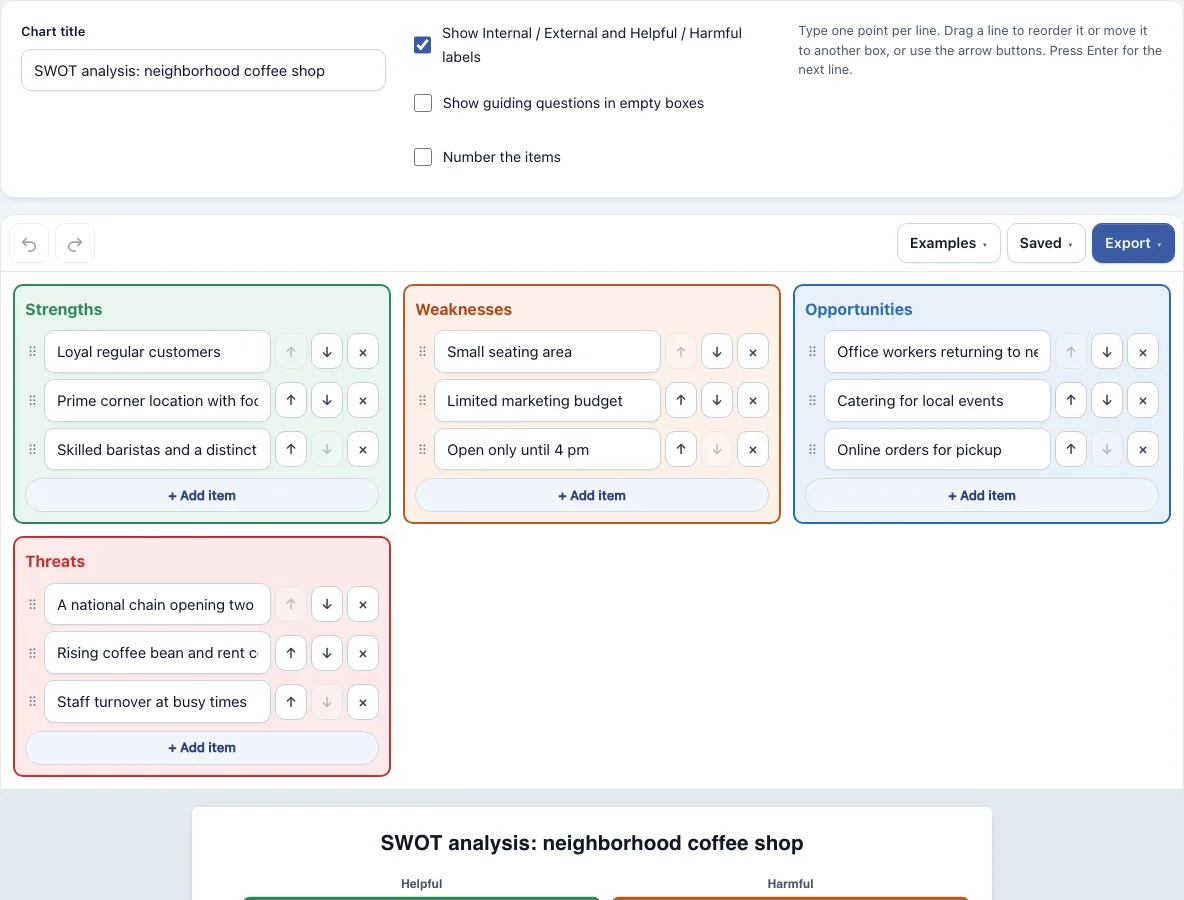
How to use the SWOT Analysis Maker
- Open the Examples menu and choose Blank template with prompts to start from scratch, or edit the coffee shop sample.
- Click the chart title and replace it with your own subject.
- Click into a box and type one point per line. Press Enter to move to the next line.
- If a box needs more lines, click + Add item. Each box holds up to 12 items.
- To delete a line, click its x button. To remove an empty line, press Backspace on it.
- To reorder items, drag a line by its grip and drop it where you want, including into another box. You can also use the up and down arrow buttons.
- Check the grid. Strengths sit top left, Weaknesses top right, Opportunities bottom left and Threats bottom right. Each box grows to fit its list.
- Open the Export menu to save the chart as a PNG, SVG or PDF, or to copy it to the clipboard.
Turn on Show Internal / External and Helpful / Harmful labels to add the classic matrix labels. Use Show guiding questions in empty boxes for brainstorming prompts, and Number the items to switch from bullets to 1. 2. 3. The Undo and Redo buttons sit in the toolbar. The page saves your latest work in this browser automatically. The Saved menu keeps named copies, starts a new empty chart, and copies a link that holds the whole chart inside the link itself, not on a server.
What is a SWOT analysis?
A SWOT analysis is a simple planning method that sorts the factors around a goal, project or situation into four groups: Strengths, Weaknesses, Opportunities and Threats. It is also called a SWOT diagram, SWOT chart or SWOT matrix, and the four groups are usually drawn as a 2 by 2 grid.
The grid has two sorting rules. The first is where a factor comes from. Strengths and weaknesses are internal, meaning they are about you or your organization. Opportunities and threats are external, meaning they exist in the world around you. The second rule is whether a factor helps or harms. Strengths and opportunities help, while weaknesses and threats harm.
Put together, the classic matrix has columns for Helpful and Harmful and rows for Internal and External. Internal and helpful gives Strengths. Internal and harmful gives Weaknesses. External and helpful gives Opportunities. External and harmful gives Threats. This is the layout the Show Internal / External and Helpful / Harmful labels option adds to your chart.
What is the difference between strengths and opportunities?
Strengths are internal factors that help you, such as skills, resources or advantages you already have. Opportunities are external factors that could help you, such as a trend, a gap in the market or a new chance in your area. The simplest test is where the factor lives. If it belongs to you or your team, it is a strength. If it exists outside you and you could take advantage of it, it is an opportunity.
Both help, so they sit in the left column of the matrix, which is the Helpful column. The difference matters because strengths are things you can build on directly, while opportunities depend on conditions outside your control. Keep each point in the box that matches its source, so the analysis stays easy to read.
Frequently asked questions
What does SWOT stand for?
SWOT stands for Strengths, Weaknesses, Opportunities and Threats. These are the four boxes on the chart, with Strengths and Weaknesses describing internal factors and Opportunities and Threats describing external factors.
Where can I get a free SWOT analysis template?
Open the Examples menu on this page and choose Blank template with prompts. It is a free SWOT analysis template: it opens in your browser with no account, and has prompts in each empty box to help you brainstorm.
Can I get a blank SWOT template to print?
Yes. Load the blank template from the Examples menu, then print the chart from your browser or export it as a PDF from the Export menu. The PDF export is a good choice for printing because it stays sharp at any size.
How do I do a personal SWOT analysis?
Load Personal SWOT: student (example) from the Examples menu to see how one is set up. Then write your own: list skills and habits that help you as strengths, and things that hold you back as weaknesses. Opportunities are chances around you, such as a course or a group, and threats are outside problems that could get in your way.
Can I download my SWOT chart as PNG, SVG or PDF?
Yes. The Export menu offers a PNG image, PNG at 2x, PNG at 4x (print quality), an SVG (vector) file, a PDF, and Copy image to clipboard. Files are cropped to the drawing, use a white background and have no watermark.
Is my SWOT analysis uploaded anywhere?
No. Nothing you type is uploaded, and the tool runs entirely in your browser. Your latest work is saved in that browser automatically, and a shared link holds the chart inside the link itself.
Can I use my SWOT chart template commercially?
Yes. Everything you make here is yours to use for personal, school and commercial work, including reports, slides, books and printables you sell. No credit is required. The only thing you may not do is copy the tool or the site itself to run a competing service; see the terms.
Related tools
- Timeline maker — use it to turn the actions from your SWOT into a dated plan.
- Gantt chart maker — use it to schedule the actions you decide on.
- RACI matrix maker — use it to decide who owns each action.
- Pie chart maker — use it to show how a total splits into parts.
- Timelines, org charts and business frameworks — browse all tools in this group.
- All Diagram Smith tools — see every tool on the site.