RACI Matrix Maker
Click a cell to set R, A, C or I for each role; the matrix checks that every task has exactly one A.
A RACI matrix is a table that shows who does what for each task in a project. RACI stands for Responsible, Accountable, Consulted and Informed, and each cell in the table holds one of those letters. This RACI matrix maker lets you build a RACI chart right in your web browser, as a free RACI chart maker with a built-in check. It is free, and you do not need an account to use it.
Tasks go down the side of the table and roles go across the top. A Check column at the end of each row tells you whether that task has the right letters. You can start from a sample, load an example, or begin with a blank template. Nothing you type is uploaded.
How to use the RACI Matrix Maker
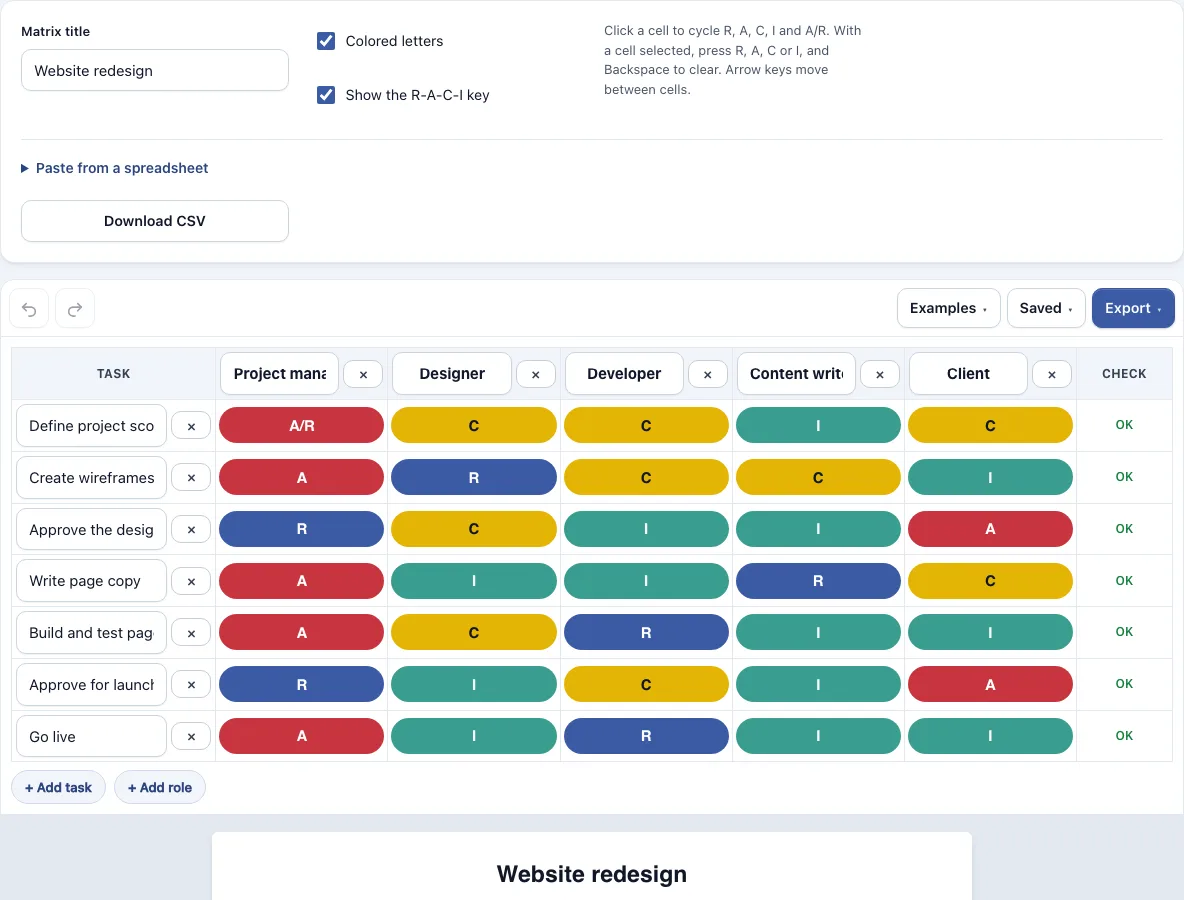
- Look at the sample website redesign matrix that opens with the page. Type over its task names, or replace the whole chart.
- Type a task in the first column of each row.
- Type a role name in each column heading.
- Click ‘+ Add task’ or ‘+ Add role’ to add a row or column. Use the x buttons to delete one. You can have up to 40 tasks and 12 roles.
- Click a cell to cycle through empty, R, A, C, I and A/R. Or select a cell and press the R, A, C or I key. Press Backspace or Delete to clear it, and use the arrow keys to move between cells.
- Read the Check column at the end of each row. Fix any row that does not say OK.
- Read the note under the matrix. It tells you whether every task has exactly one A, or how many tasks still need one.
- Open the Export menu to save the chart as a PNG, SVG or PDF, or to copy the image.
Untick ‘Colored letters’ for a black-and-white matrix that prints well, and untick ‘Show the R-A-C-I key’ to hide the legend. Undo and Redo buttons are in the toolbar. The Saved menu keeps named copies, copies a link that contains the whole chart, and starts a new empty chart.
What is a RACI matrix?
A RACI matrix is a table that shows each role’s part in each task. Tasks run down the rows, roles run across the columns, and each cell holds one letter. People also call it a RACI chart, and the two names mean the same thing.
What does RACI stand for?
RACI stands for Responsible, Accountable, Consulted and Informed. Responsible means the role does the work. Accountable means the role owns the result and approves it, and it is the single person who answers for it. Consulted means the role gives input before a decision, so information flows both ways. Informed means the role is told about the outcome, so information flows one way.
How to make a RACI chart?
Start by listing the tasks and the roles. Give each task exactly one A and at least one R, then add C or I where other roles need to take part. Keep the letters to the task, not to the person, so that one role can have different letters on different tasks. The Check column flags any row that breaks these rules.
Where can I get a RACI chart template?
The Examples menu has a Blank template with 6 empty tasks and 4 roles named Role 1 to Role 4. You can fill it in on the page or print it and write by hand. Rename the tasks and roles to suit your project.
What does a RACI chart example look like?
A RACI chart example has tasks down the left, roles across the top, and a letter wherever a task and a role meet. For example, in the website redesign example the task “Approve the design” has the Client marked A, the Project manager marked R, the Designer marked C, and the Developer and Content writer marked I. The Examples menu includes three made-up charts: Website redesign, Event planning and Employee onboarding.
Can one person be both A and R?
Yes. When the person who owns the result also does the work, the cell is A/R. That person still counts as the one Accountable for the task, so no second A is needed.
Why must every task have exactly one A?
Accountable means one person answers for the result. Two owners leave it unclear who makes the final call, and a task with no A has no one to approve it. The tool marks rows with “No A” or “More than one A” so you can correct them.
Can I paste my RACI table from Excel or Google Sheets?
Yes. Copy a table where the first row holds the role names, the first column holds the tasks, and each cell holds R, A, C, I or A/R. Paste it into the box and press “Use pasted table”. Pasting replaces the current matrix, so save a named copy in the Saved menu first if you want to keep it.
Can I download it as CSV, PNG, SVG or PDF?
Yes. Download CSV saves a .csv file with a header row (Task and the roles) and one row per task. The Export menu offers PNG image, PNG at 2x, PNG at 4x for print quality, SVG (vector), PDF and Copy image to clipboard. Files have a white background and no watermark.
Frequently asked questions
Is the RACI Matrix Maker free?
Yes. It runs in your web browser, and you do not need an account.
Is my chart uploaded anywhere?
No. Nothing you type is uploaded. The page saves your latest work in this browser automatically.
How many tasks and roles can I add?
You can add up to 40 tasks and 12 roles.
Can I print a black-and-white RACI chart?
Yes. Untick ‘Colored letters’ to print the matrix in black and white. Untick ‘Show the R-A-C-I key’ to hide the legend.
What if a role is not assigned to any task?
The tool lists any role that is not assigned to any task. A small table also counts how many tasks each role has as R, A, C and I.
Can I undo a mistake?
Yes. Use the Undo and Redo buttons in the toolbar.
What does “Nobody assigned” mean?
It means the task has a name but no letters in any role column. Add at least one letter to that row.
Can I use my RACI matrix commercially?
Yes. Everything you make here is yours to use for personal, school and commercial work, including reports, slides, books and printables you sell. No credit is required. The only thing you may not do is copy the tool or the site itself to run a competing service; see the terms.
Related tools
- Timeline maker — use it to show the dates of the same project as events on a line.
- Gantt chart maker — use it to schedule the tasks from your matrix as bars with start and end dates.
- Org chart maker — use it to draw who reports to whom for the roles in your matrix.
- SWOT chart template — use it to sort strengths, weaknesses, opportunities and threats before you plan.
- Timelines, org charts and business frameworks — browse all tools in this group.
- All Diagram Smith tools — see every tool on the site.