Pie Chart Maker
Type a label and a number for each slice; the pie chart, its percentages and its angles update as you type.
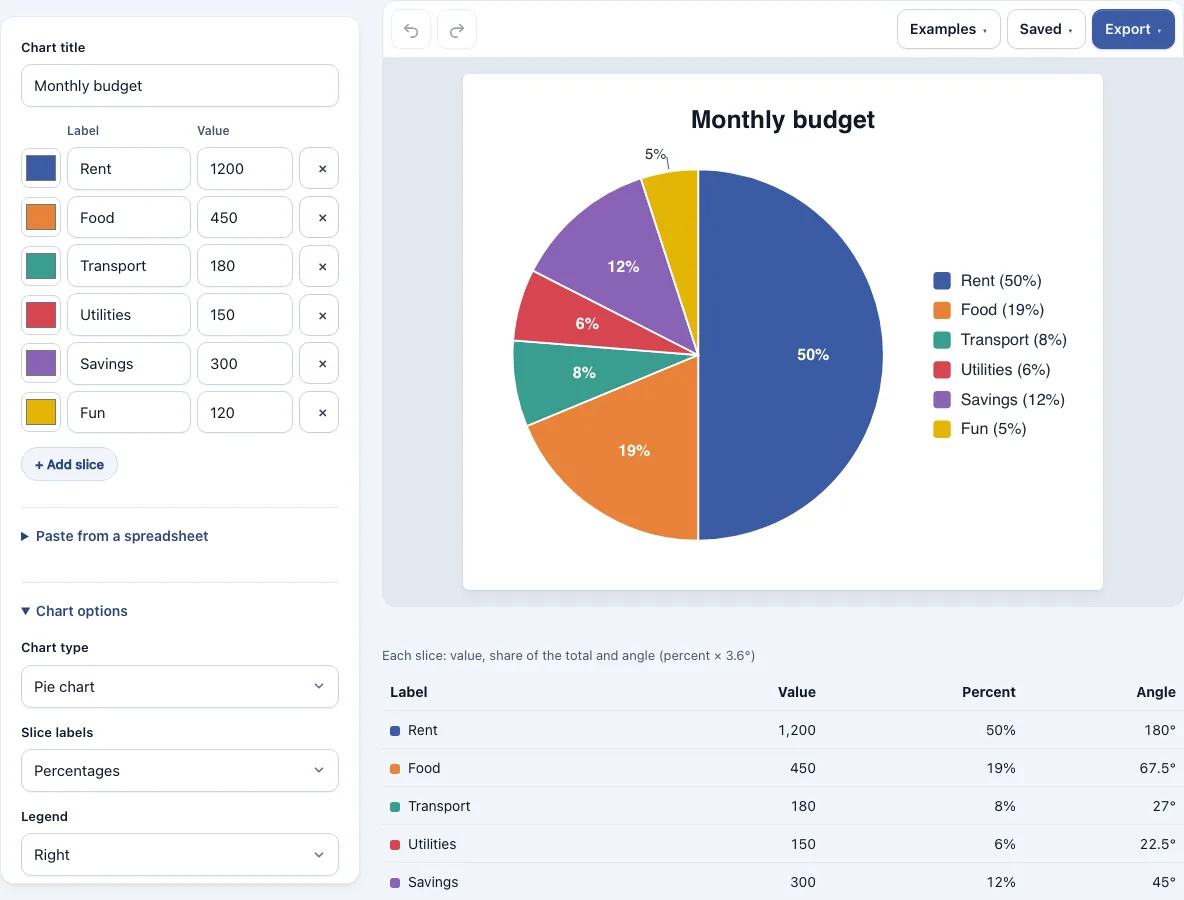
How to use the Pie Chart Maker
- Open the page. The chart starts with a monthly budget example. To begin again, choose a sample from the Examples menu, or use Start a new chart in the Saved menu.
- In the table, change the label and value in each row. Values can include a thousands separator, a currency sign or a percent sign, such as 1,200, $80 or 12%.
- Click + Add slice to add a row, or press Enter in the last value box.
- Use the color picker in each row to set the color of that slice.
- Watch the chart redraw after each change. Use Undo and Redo if you make a mistake.
- Choose Pie or Donut chart, then set the slice labels, legend position, decimal places, start angle and sort order in the chart options.
- Check the table under the chart. It lists each slice’s value, percent and angle, plus the total.
- Open the Export menu to save the chart as a PNG, SVG or PDF. Your chart is saved in this browser automatically; the Saved menu keeps named copies or copies a link that contains the chart.
Donut hole size, slice label placement and the number of decimal places are all set in the chart options, so you can change the look without touching your numbers.
How to make a pie chart
A pie chart shows how several parts make up one whole, with each slice sized to its share of the total. To make one, list each part as a label with a number, and the chart sizes the slices for you. The numbers should be amounts of the same kind, such as the money spent on different costs or the votes for different options.
How are the percentages in a pie chart calculated
Each percentage is the slice’s value divided by the total of all values, multiplied by 100. In the budget example, the values are Rent 1,200, Food 450, Transport 180, Utilities 150, Savings 300 and Fun 120, which total 2,400. Rent is 1,200 / 2,400 × 100 = 50%. Food is 450 / 2,400 × 100 = 18.75%, which shows as 19% with no decimals. Transport is 7.5% (shown as 8%), Utilities 6.25% (shown as 6%), Savings 12.5% (shown as 12%) and Fun 5%.
How do you work out the angle of each slice
A full circle is 360 degrees, which is the same as 100%, so each percentage point is 3.6 degrees. A slice’s angle is its percentage × 3.6, or its value / total × 360. Rent is 50%, so its angle is 50 × 3.6 = 180 degrees, half the circle. Food’s angle is 18.75 × 3.6 = 67.5 degrees, which comes from the exact share, not the rounded 19%. The other angles are Transport 27, Utilities 22.5, Savings 45 and Fun 18 degrees. Together they add up to 360 degrees. The table below the chart lists the angle for every slice.
Why don’t my percentages add up to exactly 100
Rounding each percentage on its own can make the shown numbers add up to 99 or 101. The tool avoids this with the largest remainder method. It rounds every share down, then gives the missing units to the shares with the largest leftover parts. The shown percentages therefore always total exactly 100 at the number of decimals you choose. In the budget example, the shown values are 50, 19, 8, 6, 12 and 5, which add up to 100.
When should you use a pie chart
Pie charts work best for showing parts of one whole, with a few categories, often said to be about 5 to 7. Put very small categories into an “Other” slice so that the labels stay readable. If you are comparing values that are not parts of a whole, or values that are very close in size, a bar chart is usually easier to read.
Frequently asked questions
Can I make a donut chart?
Yes. Choose Donut chart in the chart options, then set the hole size from 20% to 80% of the radius. You can also show the total in the middle of the donut.
Is Pie Chart Maker free, and do I need an account?
It is free, and you do not need an account. Everything runs in your browser.
Can I paste data from Excel or Google Sheets?
Yes. Copy two columns, a label column and a number column, from Excel, Google Sheets or a CSV file, open Paste from a spreadsheet, paste them into the box and click Use pasted data. A first line without a number is treated as a header and skipped. Pasting replaces the current table.
Can I download the chart as PNG, SVG or PDF?
Yes. The Export menu offers PNG, PNG at 2x or 4x, SVG (vector), PDF and Copy image to clipboard. The exports have no watermark.
What happens to a negative or non-numeric value?
The tool reports the row number and leaves that slice out, because a pie chart cannot show negative values. Correct the value in that row and the chart updates.
Is there a pie chart template I can start from?
Yes. The Examples menu loads a monthly budget, a class survey of favorite fruit and a day’s schedule. Each one is a ready-made pie chart template: replace the labels and numbers with your own and keep the layout, or change the colors and options.
Is my data uploaded?
No. The data you type is not uploaded. Autosave keeps your chart in this browser, and the share link contains the chart itself, with nothing uploaded.
Can I use my pie charts commercially?
Yes. Charts you make here are yours to use for personal, school and commercial work, including reports, slides, books and printables you sell. No credit is required. The only thing you may not do is copy the tool or the site itself to run a competing service; see the terms.
Related tools
- Flowchart maker — use it to map steps, decisions and processes instead of parts of a whole.
- Charts and graphs — browse all tools in this group when you need a different chart type.
- Flowcharts and process diagrams — look here for diagrams that show how a process flows.
- Venn diagrams, concept maps and tree diagrams — use this group when you want to show how groups overlap rather than how a total splits.
- Timelines, org charts and business frameworks — use this group for project schedules and planning frameworks.
- All Diagram Smith tools — see every tool on the site.