Org Chart Maker
List each person, their job title and who they report to; the org chart draws itself as you type.
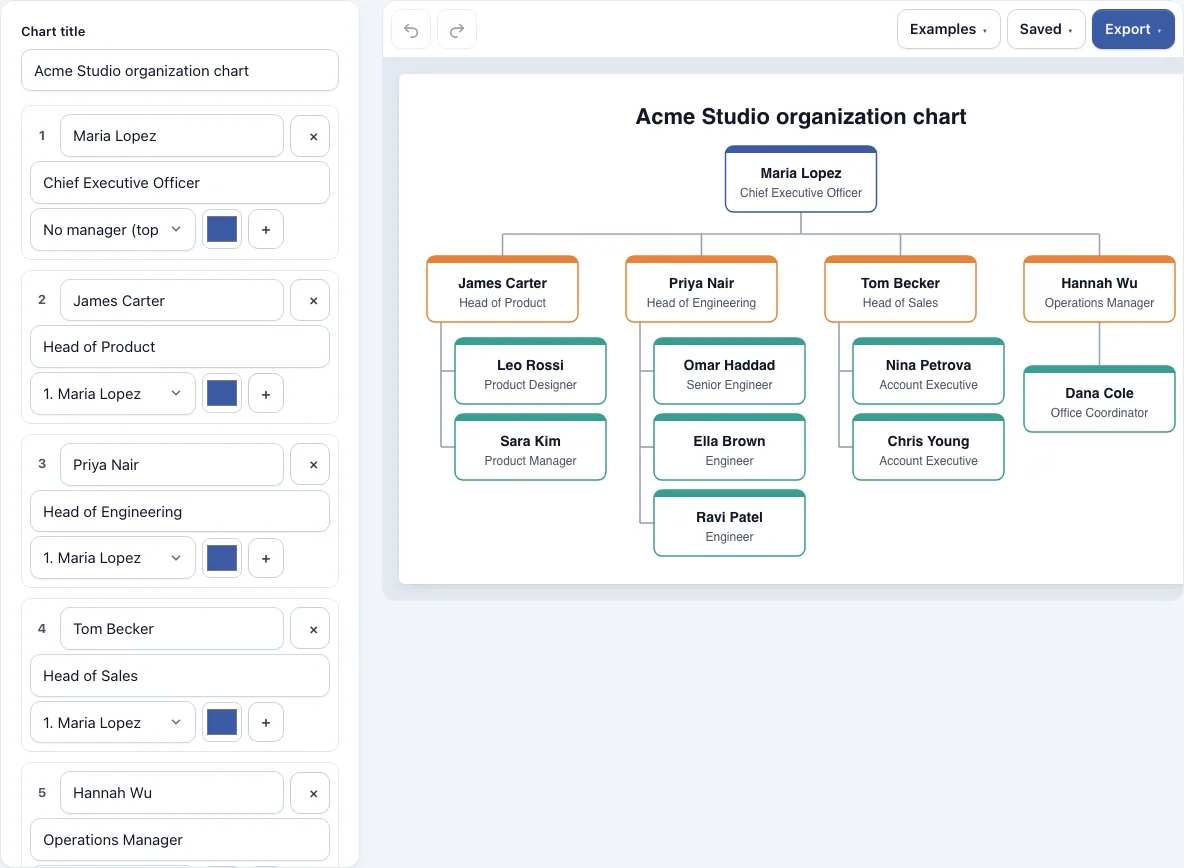
How to use the org chart maker
- Open the page. A sample chart for a small company, with 13 made-up people, loads first. Edit it, or open the Examples menu and load Small company, School, Restaurant or Blank chart.
- In the left panel, change a person’s name and job title. Each row is one person.
- Open the “who they report to” menu and pick a manager from the list. Choose “No manager” for the person at the top. People with no manager are drawn at the top, side by side if there are several.
- To add someone who reports to an existing person, click the + button on that person’s row. To add someone at the end of the list, click “+ Add person”.
- To remove someone, click the x button. Their reports move up to report to that person’s manager.
- Set Direction to “Top to bottom” or “Left to right”. If you use top to bottom, turn on “Stack small teams under their manager” to keep wide teams narrow.
- Turn on “Color each level differently” to color cards by level, or pick a color for one person with the color picker. The circular arrow button next to it returns that person to the automatic color.
- Open the Export menu and choose PNG, PNG at 2x or 4x (print quality), SVG, PDF, or Copy image to clipboard.
Your work is saved in this browser automatically. Download CSV saves the columns Name, Title and Reports to.
What is an organizational chart?
An organizational chart shows the structure of an organization: who works there, what their jobs are, and who reports to whom. It is usually drawn as a tree, with the top person or board at the top and lines running down to the people each manager leads.
In this tool, each person is a card with a colored top bar, the name in bold and the job title below. All cards in a chart are the same size, so each level lines up. Lines join each manager to the people who report to them. To find someone’s manager, follow their line upward. Each person has only one manager in this tool, which keeps the chart a clear tree. A person with no manager sits at the top, so a company with several leaders shows them side by side.
Color helps readers scan a large chart. Turning on “Color each level differently” gives each level its own color, using 8 colors in turn. A color you pick for a person overrides the level color, so you can highlight a department head or a team you want to point out.
Can I make an org chart from a spreadsheet or list?
Yes. Open Paste or import a list and enter one person per line, with three values separated by tabs or commas: the name, the job title, and the name of the person they report to. A list copied from Excel or Google Sheets works without changes. If the first line starts with Name, the tool treats it as a header row and skips it.
The manager’s name is matched to the names in the list, ignoring capital letters. If a manager’s name matches nobody, that manager is left empty and the tool shows a message with the count. Check those names for spelling and run the import again. Pasting replaces all current people, so copy your existing chart with Download CSV first if you want to keep it.
Frequently asked questions
Where can I get a free org chart template?
The Examples menu holds ready-made charts: Small company, School and Restaurant, all with made-up names, plus a Blank chart. Load the one closest to your needs, then replace the names and job titles with your own. Start from Blank chart if you want to build from nothing.
How big an org chart can I make?
You can add up to 150 people. The “+ Add person” button adds someone at the end of the list, so you can keep adding until you reach that limit.
Can I download my org chart as PNG, SVG, PDF or CSV?
Yes. The Export menu offers PNG, PNG at 2x, PNG at 4x (print quality), SVG (vector), PDF, and Copy image to clipboard. Files are cropped to the drawing, have a white background and carry no watermark. Download CSV saves the people list with the columns Name, Title and Reports to.
Can I draw my org chart left to right?
Yes. Set Direction to “Left to right”. The “Stack small teams under their manager” option works only with top to bottom, so it has no effect in left to right mode.
What happens if someone reports to themselves or in a loop?
The tool shows a message if a person reports to themselves, reports to someone not in the list, or if people report to each other in a loop. Those people are drawn at the top, so you can see the problem. Change their “who they report to” menu to fix it.
Is my chart private?
Everything runs in your web browser, and nothing you type is uploaded. No account is needed. The page saves your work in this browser only.
Can I use my org chart commercially?
Yes. Everything you make here is yours to use for personal, school and commercial work, including reports, slides, books and printables you sell. No credit is required. The only thing you may not do is copy the tool or the site itself to run a competing service; see the terms.
Related tools
- RACI matrix maker — use it to say who does, approves, advises and is told for each task.
- Timeline maker — use it to show the history of a team or company by date.
- Gantt chart maker — use it to schedule the work of the people on your chart.
- Flowchart maker — use it to map a process that crosses teams.
- Timelines, org charts and business frameworks — browse all tools in this group.
- All Diagram Smith tools — see every tool on the site.