Network Diagram Maker
Add routers, switches, firewalls and servers, connect them, label the links with ports or IP addresses, and download the network diagram.
A network diagram is a drawing that shows the devices in a network, such as routers, switches, computers and servers, and the links that connect them. This Network Diagram Maker lets you draw one in your web browser. It is free, needs no account, and runs entirely in the browser.
The editor opens with a sample small office network that you can change. You can start from it, load another layout from the Templates menu, or begin with an empty diagram. Add devices from the toolbar, connect them by dragging, and label the links with port names, IP addresses, VLANs or speeds. When the drawing is ready, export it as an image or PDF.
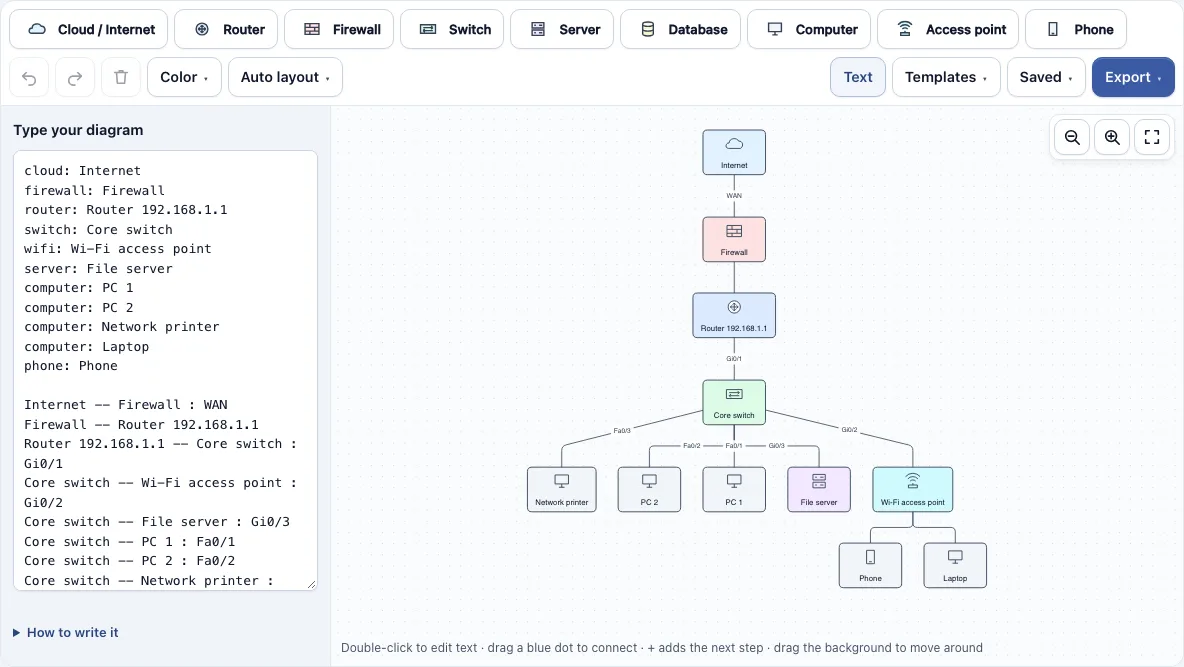
How to use the Network Diagram Maker
- Open the editor. It shows a sample small office network. To start fresh, open the Saved menu and start a new empty diagram, or load a layout from the Templates menu.
- Add a device with a toolbar button: Cloud / Internet, Router, Firewall, Switch, Server, Database, Computer, Access point (Wi-Fi) or Phone. If one device is selected, the new device appears next to it and is linked to it.
- Connect two devices by dragging one of the small blue dots on the edge of a device onto another device. Drop it on empty space to create a new connected device.
- Rename a device by double-clicking it. Press Enter to save, Shift+Enter for a line break, or Esc to cancel.
- Label a link by double-clicking it and typing, for example, Gi0/1, 192.168.1.1, VLAN 10 or 1 Gbps.
- Arrange the layout. Drag devices to move them, or use Auto layout to place all devices top to bottom or left to right and route the links.
- Open the Export menu and choose PNG, PNG 2x, PNG 4x, SVG or PDF.
Ctrl/Cmd plus the mouse wheel zooms, and Shift+drag selects several devices. Ctrl+D duplicates the selection, and Ctrl+Z and Ctrl+Shift+Z undo and redo. The Text button opens a text box that stays in sync with the drawing, so you can type your diagram instead.
What is a network diagram?
A network diagram is a visual drawing of a computer network. It shows each device as a shape and each connection as a line, so you can see how the parts fit together.
People use network diagrams to plan a network, explain it to others, and trace a connection when something stops working. Diagrams can be drawn at different levels of detail. A high-level sketch might show only the internet connection, the router and the file server, while a detailed one lists every switch and port.
What do the symbols in a network diagram mean?
Network diagram symbols are small icons that show what kind of device each box represents. Most diagrams use the same common set, so readers can recognise devices quickly. These are the shapes this tool uses, with the type name you can write in the Text box:
- Cloud / Internet (
cloud): an external network outside your control, usually the internet. - Router (
router): forwards traffic between networks, such as from your office to the internet. - Firewall (
firewall): filters traffic and blocks connections that break its rules. It usually sits between the internet and the internal network. - Switch (
switch): connects devices inside one network and passes traffic to the correct device. - Access point (
wifi, alsoap): gives wireless devices a connection to the network. - Server (
server): a computer that provides a service, such as files, email or a website, to other devices. - Database (
database, alsodb): a server that stores structured data. - Computer (
computer, alsopcorlaptop): a desktop or laptop used by a person. - Phone (
phone, alsomobile): a telephone, including a mobile phone.
The same symbol can play different roles, so add a label when the role matters. For example, a router labelled “Edge router” tells the reader which router connects to the internet.
Frequently asked questions
How is a network map different from a network diagram?
The two terms overlap in everyday use. A network diagram is usually a planned drawing of how devices connect, while a network map often refers to a view of an existing network, sometimes including physical locations. This tool draws diagrams: you add and connect every device yourself.
Where can I get a network diagram template?
Open the Templates menu to load Small office network, Home network, Three-tier web application, Star topology, Two offices over VPN or Data center (core and access). You can edit any template after loading it. Loading one can be undone.
Can I label ports and IP addresses on the links?
Yes. Double-click a link and type the label, such as a port name like Gi0/1, an IP address, a VLAN or a speed. The text after the link in the Text box also sets the label.
Can I export a network diagram as PNG, SVG or PDF?
Yes. The Export menu offers PNG, PNG 2x, PNG 4x, SVG and PDF, plus Copy image to clipboard. The files have a white background and no watermark.
Is my diagram saved, and is it uploaded anywhere?
The page saves your latest work in your browser automatically. The diagram is not uploaded. The Saved menu keeps named copies, and it can copy a link that contains the whole diagram. That link holds the diagram itself, not a file on a server.
Can I use what I make with the network diagram maker commercially?
Yes. Everything you make here is royalty-free for personal, classroom and commercial use, including documentation, books and course material. No credit is required. The only thing you may not do is copy the tool or the site itself to run a competing service; see the terms.
Related tools
- Software and network diagrams: compare all diagram tools in this group when you are not sure which one fits your task.
- Flowchart maker: use it to map steps, decisions and processes instead of devices and links.
- UML class diagram maker: use it to model classes and their relationships in software design.
- ER diagram maker: use it to draw database tables and how they relate to each other.
- Sequence diagram maker: use it to show messages exchanged between systems over time.
- All Diagram Smith tools: browse every tool on the site.