
Mermaid to draw.io Converter
Free, no sign-up, nothing uploaded: paste Mermaid code and your browser turns it into shapes you can drag and edit; saving a .drawio file is Pro.
Free · runs in your browser · nothing is uploaded
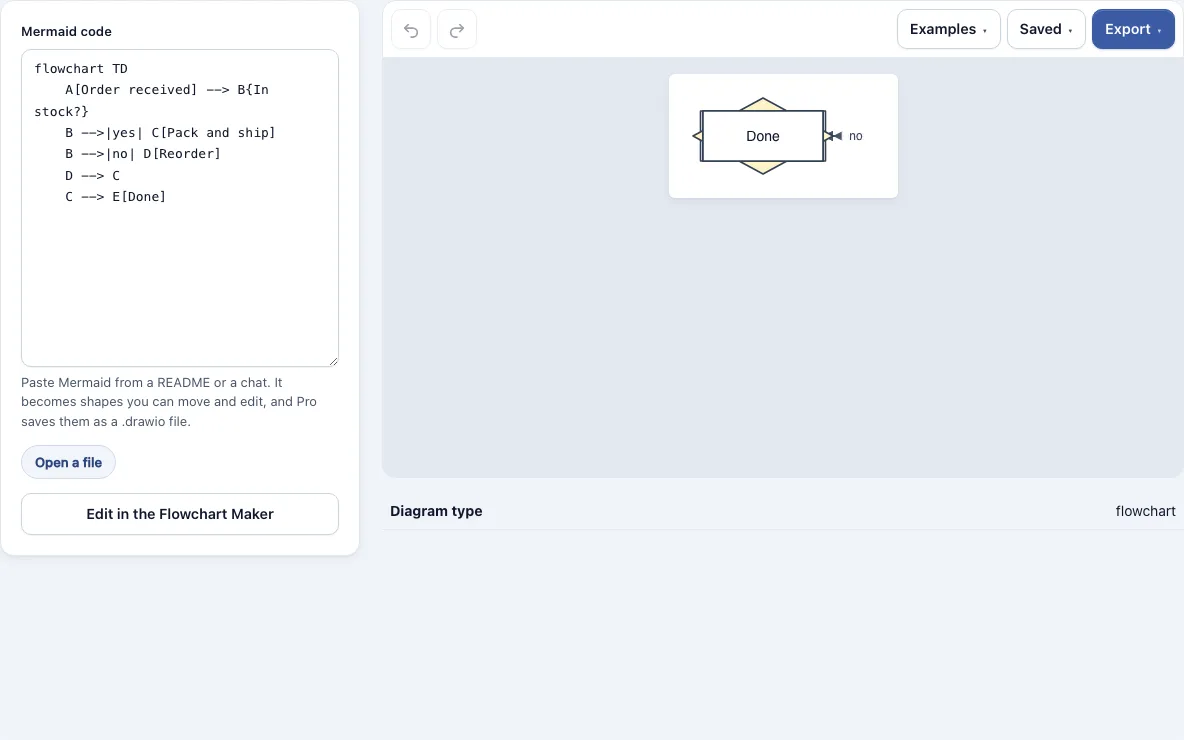
How to use the Mermaid to Draw.io converter
- Paste your Mermaid code into the editor, or open a .mmd, .mermaid, .md or .txt file. A whole Markdown file or an AI chat reply can go in as it is, because the Mermaid block is found for you. If there are several blocks, the first is drawn and a note says so.
- Check the diagram that appears in the preview. It is built from real shapes of this site’s tools, not a picture of Mermaid’s output.
- Read any notes under the preview. A note says what could not be carried over, for example a Mermaid type that has no matching tool on this site. The page also names the diagram type it found, so you can check that the code was read the way you meant.
- Click the Edit button under the code. It names the matching tool, such as Edit in the Flowchart Maker, where you can move shapes and change their text. Opening it is free.
- Export your result. PNG at 1x, 2x or 4x, SVG and a picture PDF are free, with no watermark. A Pro account adds a vector PDF and an editable .drawio file.
- Let the work save itself. Your code autosaves in this browser, the Saved menu keeps named copies, and a share link holds the document inside the link.
Which Mermaid diagram types convert to editable shapes?
Flowchart, sequence, class and ER diagrams are read by this site’s own parsers. State, Gantt, timeline, mind map, pie, sankey, quadrant and other types are read with mermaid-ast, an MIT-licensed library. Types with no matching tool are refused with a message instead of being converted.
| Mermaid type | How it is read | Editable .drawio output (Pro) |
|---|---|---|
| Flowchart | This site’s flowchart parser | Shapes and connectors |
| Sequence | This site’s sequence parser | Shapes and connectors |
| Class | This site’s class parser | Shapes and connectors |
| ER | This site’s ER parser | Shapes and connectors |
| State | mermaid-ast | Shapes and connectors |
| Gantt | mermaid-ast | Shapes and connectors |
| Timeline | mermaid-ast | Shapes and connectors |
| Mind map | mermaid-ast | Shapes and connectors |
| Pie | mermaid-ast | Picture |
| Sankey, quadrant | mermaid-ast | Picture |
| Types with no matching tool | Refused with a message | Not available |
How do I convert a Mermaid diagram into a flowchart?
Paste flowchart code into the tool and it becomes shapes and connectors built by this site’s own flowchart parser. Your Mermaid code must start with a flowchart declaration, such as flowchart TD, for the parser to read it as a flowchart. You can then edit the result without redrawing it by hand.
- Confirm your code starts with a flowchart line, such as
flowchart LR. - Paste the code into the editor, or open the .mmd file that holds it.
- Review the shapes and connectors in the preview.
- Click Edit in the Flowchart Maker to move a box or change its text.
- Export as PNG, SVG or picture PDF, or use Pro to save an editable .drawio file.
Why convert Mermaid instead of redrawing it?
Mermaid is quick to write and easy to keep in a repository, but its picture is fixed: you cannot drag one box without rewriting the text. Redrawing a large chart by hand takes time and invites mistakes. Converting keeps the node labels and links from the code, apart from subgraph titles and quadrant names, and hyphens in ER entity names become underscores. It gives you shapes for the last adjustments that a text language cannot make, such as moving one box or changing a single colour for a slide.
What this does not do
- It does not keep Mermaid’s own layout. Positions are worked out again by this site, so the picture differs from Mermaid’s.
- It does not convert every type. Types with no matching tool are refused with a message, and only the first block of a file with several is drawn.
- It drops subgraph titles and quadrant names, and hyphens in ER entity names become underscores.
- It does not give you an editable .drawio file for free. In that Pro file, pie, Sankey and quadrant charts are saved as one picture.
Frequently asked questions
Can draw.io accept Mermaid?
Yes, draw.io has its own Mermaid insert option. This page does the conversion first, so you can check and edit the shapes here, and Pro saves the result as a .drawio file for diagrams.net. Keeping the Mermaid source as text also makes changes easier to review over time.
Is draw.io import free?
Yes. Pasting Mermaid code, editing the shapes and exporting PNG, SVG or a picture PDF are all free, with no watermark. The editable .drawio file is a Pro feature.
What is draw.io now called?
The same editor is known as draw.io and as diagrams.net. Pro .drawio files open in diagrams.net.
Does every Mermaid diagram convert perfectly?
Most common types convert into shapes, but layout is worked out again by this site’s engine, so positions differ from Mermaid’s own picture. Types with no matching tool are refused with a message. In a Pro .drawio file, pie, Sankey and quadrant charts are saved as a picture rather than as shapes.
Can I edit the diagram after converting it?
Yes. The Edit button opens the diagram in the matching tool at no cost, where you can move shapes, change their text and reconnect them.
Is my Mermaid code uploaded anywhere?
No. The tool runs entirely in your browser, so nothing you type or open is sent to a server, and you do not need an account.
Can I save my work and come back to it?
Yes. Your work autosaves in this browser, and the Saved menu keeps named copies. A share link holds the whole document, so anyone with the link can open it.
Can I use the results in my own work?
Yes. Results may be used commercially without attribution.
Related tools
Diagram Converters & File Viewers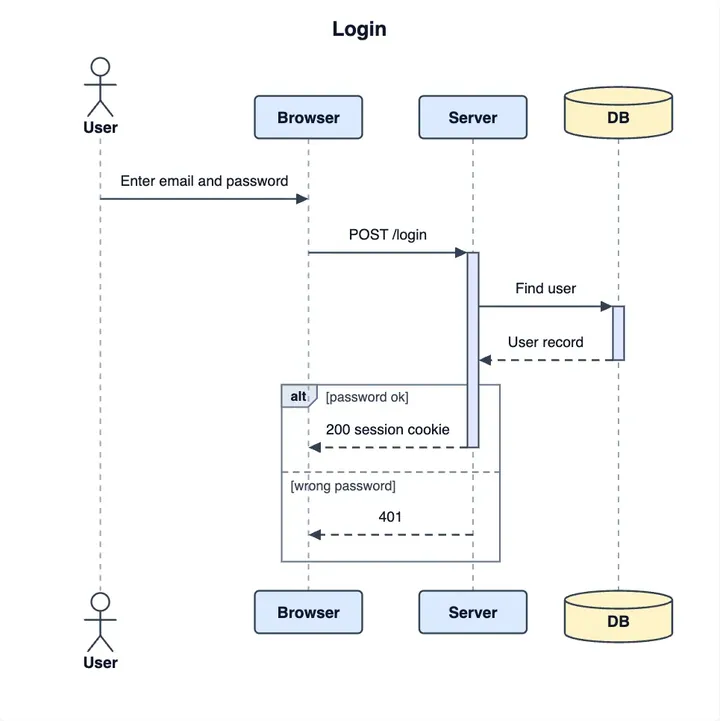
PlantUML Online Editor
use it when your diagram source is written in PlantUML rather than Mermaid.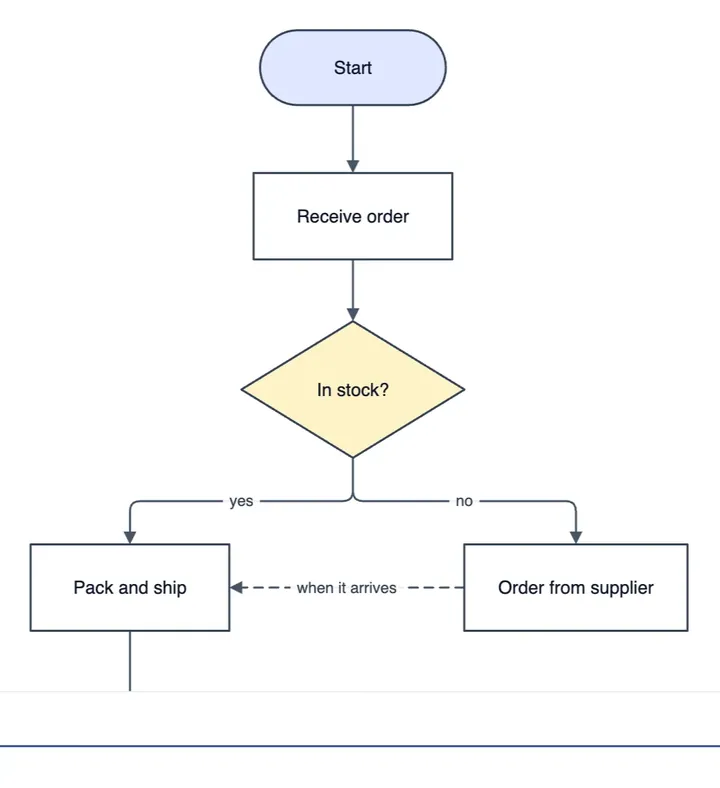
Visio Viewer
use it to open an existing Visio file when you need to read it.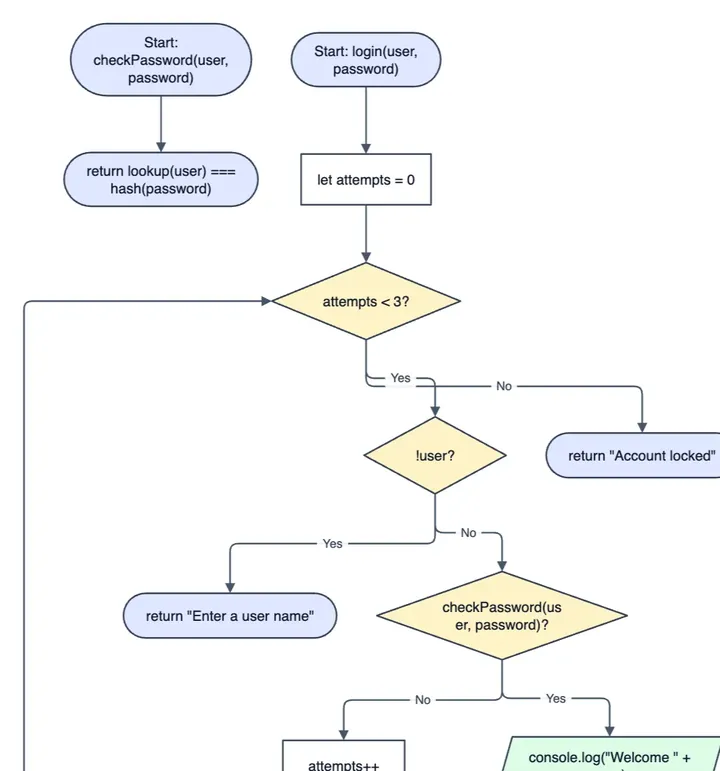
Code to Flowchart
use it to turn code into a flowchart of its logic.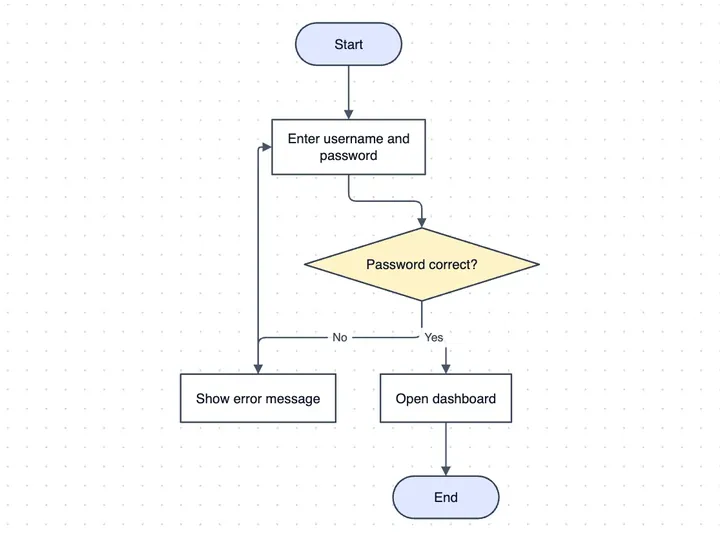
Flowchart Maker
use it when you want to build a flowchart from scratch instead of converting code.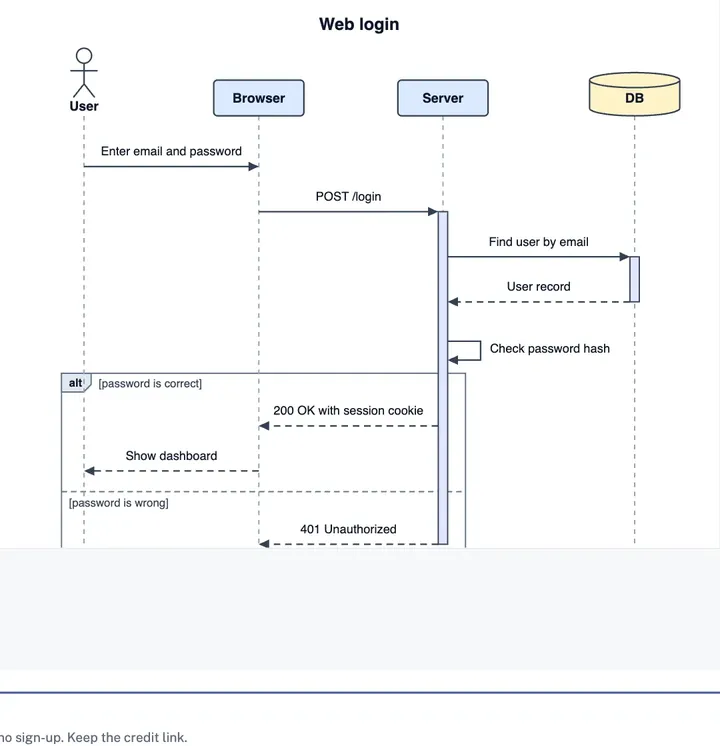
Sequence Diagram Maker
use it to plan message flows between actors and systems.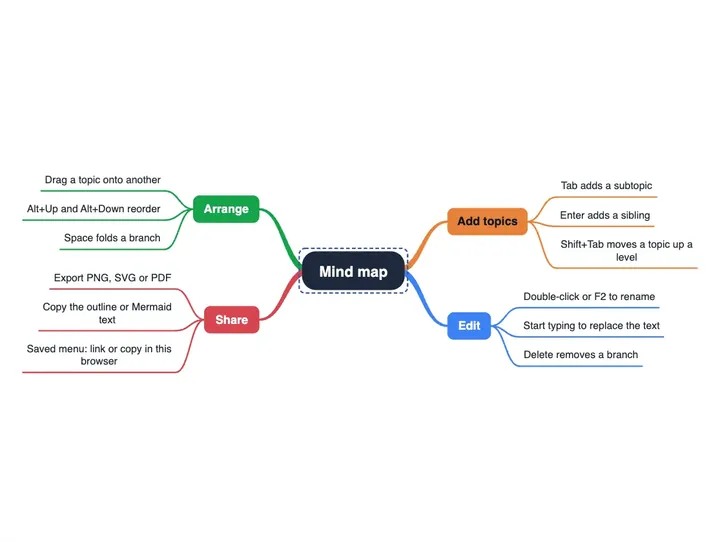
Mind Map Maker
use it to lay out branching ideas as a mind map.