Line Graph Generator
Type or paste your numbers; the line graph draws as you type, with one line per column and the summary numbers underneath.
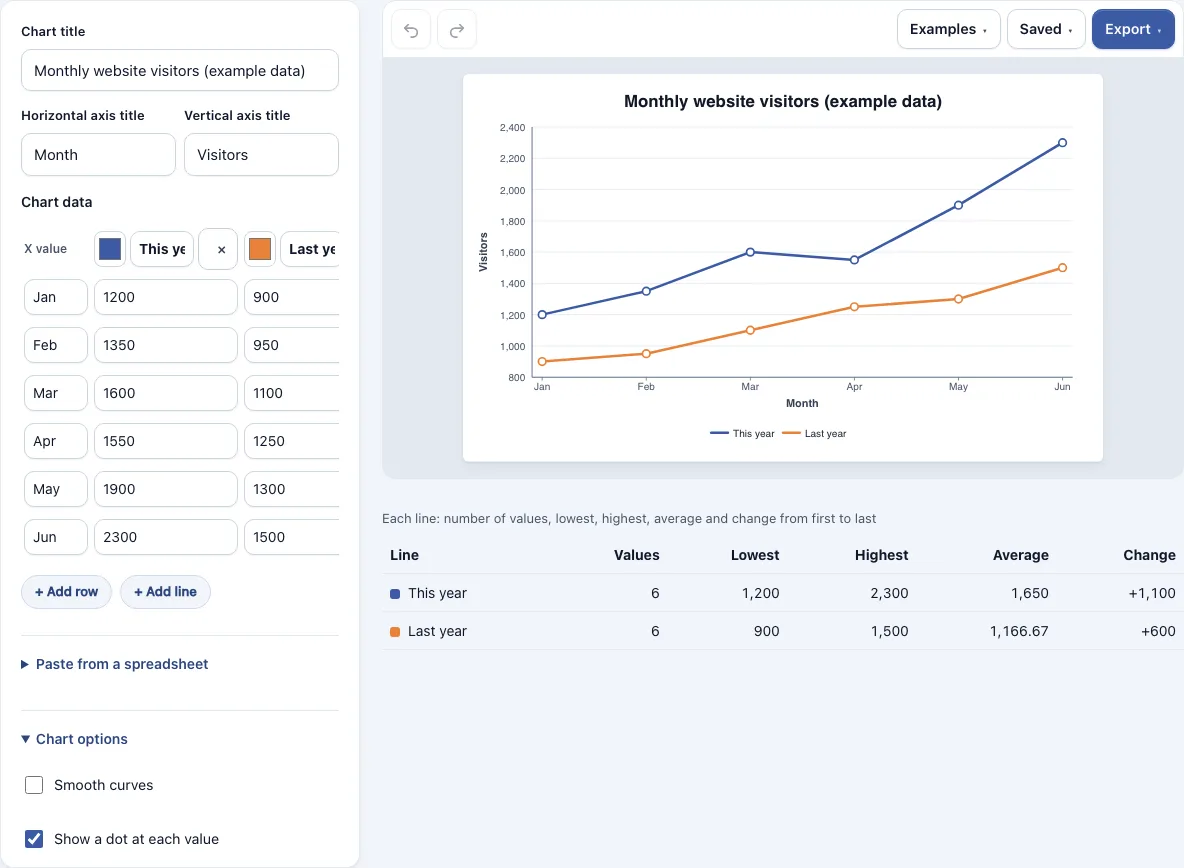
How to create a line graph with the Line graph generator
- Start with the sample table, or click Start a new, empty one in the Saved menu to clear it.
- Type the x values in the first column, such as Jan, Feb or numbers.
- Type a name for each line in its name box in the column head, and pick a color with its color picker.
- Enter the values for each line in its column. Leave a cell blank to make a gap in that line. Press Enter to move down; on the last row it adds a new row.
- Click + Add row or + Add line to grow the table. Click an x mark to remove a row or a line.
- Type your text in the Chart title, Horizontal axis title and Vertical axis title boxes.
- Adjust the chart options, such as Smooth curves, Show the values, Grid lines, Legend, Chart size and Line thickness.
- Check the summary table under the chart for each line’s lowest, highest and average value and its change.
- Open the Export menu and choose PNG, PNG at 2x or 4x, SVG, PDF or Copy image to clipboard.
Use Undo and Redo to step back, and the Examples menu for three ready-made charts. To share a chart, choose Copy link to this diagram in the Saved menu; the chart is stored inside the link after the # sign, so it is not sent to any server.
How to make a line graph
A line graph places each value at a point, using its x value for position along the horizontal axis and the measured value for height. The points are then joined in order, so the line shows how the values move from one point to the next. A line needs at least two points to join.
When every x value is a number, the points are spaced in proportion to those numbers. Weeks 0, 1, 2, 4 and 8 leave a wider gap between weeks 4 and 8, which keeps the timing accurate. When the x values are text labels, the points are spaced evenly.
When should I use a line graph instead of a bar chart?
Use a line graph when the x values form a continuous scale, such as time, and you want to see a trend or change. A line implies that values between two points follow the path between them. A bar chart is better for comparing separate categories, such as sales for four different regions, because each bar stands on its own.
How do I add several lines to one line graph?
Each column after the first column in the data table becomes one line, with its own name and color. Plotting lines on the same axes lets you compare how they rise and fall against each other. The legend, set to below or right, tells the reader which line is which. The summary table under the chart gives the lowest, highest and average value for each line, so you can compare them with numbers as well as shapes.
How do I paste data from Excel or Google Sheets?
Copy the cells, including the header row, and paste them into the Paste from a spreadsheet area. The first column is read as x values and the other columns as lines. If the first row has text in every cell after the first, those cells become the line names and the first cell becomes the horizontal axis title. Pasting replaces the current table, so save a copy first if you want to keep the old one.
How do I label the axes of a line graph?
The horizontal axis shows the x values and the vertical axis shows the measured values. Give each axis a short title that includes the unit, such as “Visitors per month” or “Height (cm)”, so the reader knows what the numbers mean. The vertical axis ends at round numbers, with ticks in steps of 1, 2 or 5 times a power of ten. Set Vertical axis starts at to Zero to begin the axis at 0, which shows the size of a change compared with the whole value. Automatic fits the axis to your data, which makes small changes easier to see.
Can I download the line chart as PNG, SVG or PDF?
Yes. PNG is a standard image, and PNG at 2x or 4x is sharper, which helps for printing or large screens. SVG is a vector file that scales to any size without blurring, which suits designers and editing software. PDF is useful for documents. All exports have a white background and no watermark.
Frequently asked questions
Is the line graph generator free to use?
Yes. It is free, runs in your browser and needs no sign-up.
Is my data uploaded to a server?
No. Your data is not uploaded. Work is saved in your own browser, and a share link keeps the diagram inside the link after the # sign, not on a server.
How many lines and rows can I add?
You can have up to 6 lines and 60 rows.
Why is part of my line missing?
A blank cell leaves a gap in that line. A value that is not a number is left out, and the tool reports its row and line so you can correct it.
Can I enter values with commas, dollar signs or percent signs?
Yes. Values such as 1,200, $80 or 12% are accepted.
Why are the points on my x axis spaced unevenly?
When all x values are numbers, the points are spaced by their size. To space them evenly, choose the option that always uses labels with equal spacing in the X values setting.
Can I use my line graphs commercially?
Yes. Everything you make here is yours to use for personal, school and commercial work, including reports, slides, books and printables you sell. No credit is required. The only thing you may not do is copy the tool or the site itself to run a competing service; see the terms.
Related tools
- Pie chart maker: Use it to show how parts make up a whole.
- Gauge chart maker: Use it to show a single value against a range, such as a progress score.
- Sankey diagram generator: Use it to show how quantities flow from one group to another.
- Charts and graphs: Browse all the chart tools in one place.
- All Diagram Smith tools: See every tool on the site.