Gantt Chart Maker
Add tasks with start and end dates; drag the bars to reschedule and link tasks with Depends on.
This free Gantt chart maker, also called a Gantt chart creator or generator, draws your tasks as bars on a calendar, so you can see when each one starts and ends and where they overlap. It runs in your web browser, needs no account, and nothing you type is uploaded.
The page opens with a sample chart for a website launch plan. It has seven tasks and made-up dates in 2027. You can change any part of it, or load a blank chart and build your own. Each task can have a color, a progress percentage and a link to the tasks it depends on. When the chart is ready, you can export it as an image, PDF or SVG, or download the task table as a CSV file.
How to use the Gantt chart maker
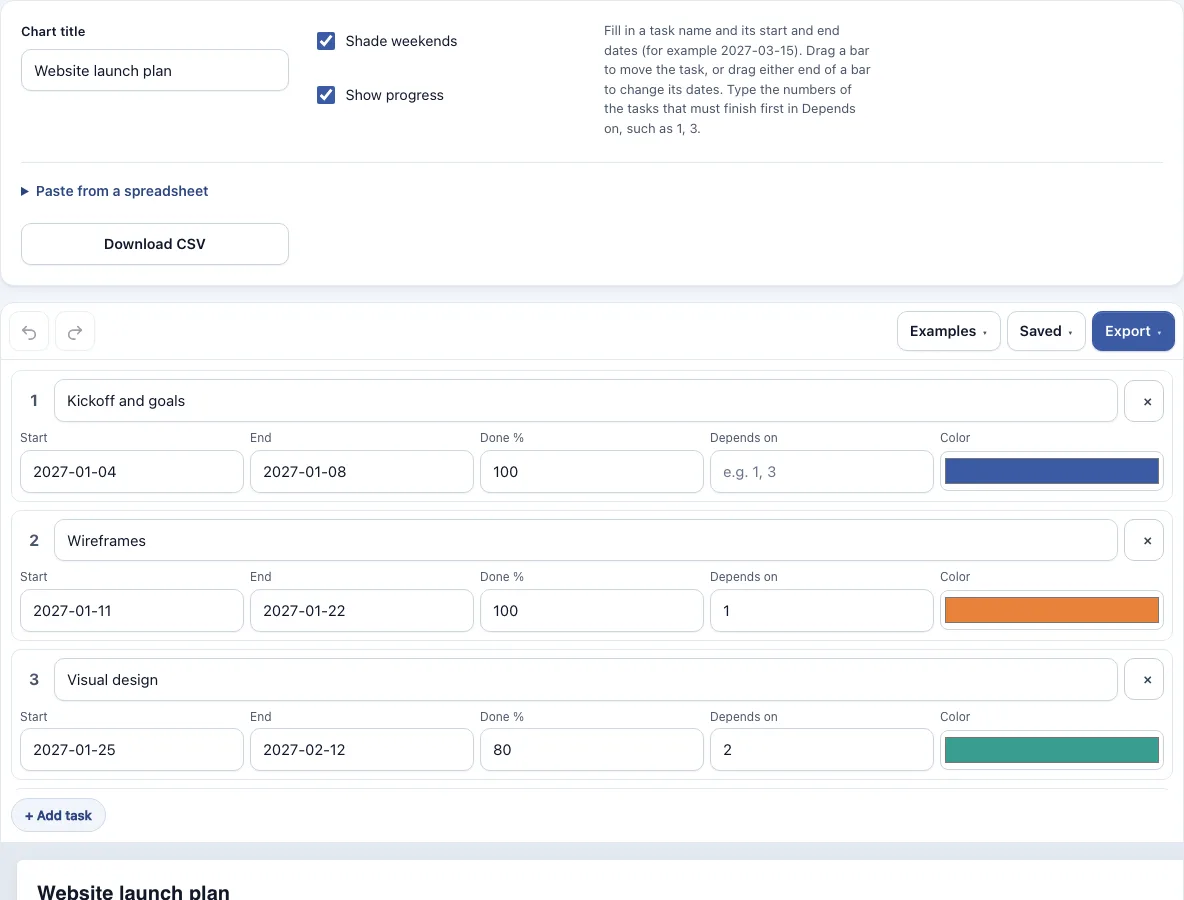
- Look at the sample chart that loads with the page. To start over, open the Examples menu and choose Blank chart, which gives you three empty rows.
- In the table above the chart, type a name for the task in its Name box.
- Type a start date and an end date, such as 2027-03-15 or Mar 15, 2027. Leave the end blank for a one-day task.
- Set Done % from 0 to 100 to record progress.
- In Depends on, type the numbers of the tasks that must finish first, such as 1, 3.
- Choose a color for the bar.
- Click + Add task for each new row (up to 60 tasks). Click the x button to delete a row.
- Check the chart. If a start date is not recognized, or an end date is before the start, the task is left out and a message names its number.
- Turn on Show progress to fill each bar to its Done %, or Shade weekends to shade Saturdays and Sundays.
- Open the Export menu to save a PNG, SVG or PDF, or click Download CSV to save the table.
Undo and Redo are in the toolbar if you make a mistake. The page saves your latest work in this browser automatically. The Saved menu keeps named copies, copies a link that holds the whole chart, and starts a new empty chart.
What is a Gantt chart?
A Gantt chart is a bar chart that lists tasks down the side and draws each one as a bar across a calendar. Each bar shows when a task starts and ends, and where tasks overlap in time.
To read one, look at the task names on the left and the month and year band across the top. The length of a bar shows how long the task lasts. Bars that sit side by side on the same days are running at the same time. This makes it easy to spot crowded periods and tasks that must wait for others.
The chart is named after Henry Gantt, an American mechanical engineer who popularized such charts in the 1910s. In this tool, the end day of a task is included. A task that runs from 3 March to 5 March lasts three days, and a task with no end date is treated as one day long.
How do I add task dependencies?
Type the numbers of the tasks that must finish first in the Depends on box, separated by commas, such as 1, 3. The chart then draws an arrow from the end of each of those tasks to the start of the task you are editing.
The rule behind this is simple: a task should not start until the tasks it depends on are finished. The start day of a dependent task should therefore fall after the end day of each task it depends on. The tool warns you when a task starts on or before the day a task it depends on ends. It also warns you when a number does not match a task on the chart. If you delete a row, check the numbers in Depends on, because they refer to task numbers. Dragging a bar does not move other tasks, so after you change a date, look for warnings on the tasks that depend on it.
Frequently asked questions
How do I make a Gantt chart online?
Open the page, which loads a sample chart you can change, or choose Blank chart from the Examples menu. Replace the task names and dates in the table, and the bars on the chart update to match. No sign-up is needed.
Can I drag the bars to change dates?
Yes. Drag a bar sideways to move the task to other dates, or drag its left or right end to change the start or end date. The date boxes in the table update as you drag, and Undo reverses the change.
Can I show progress on the bars?
Yes. Turn on Show progress and each bar fills to its Done % and the percentage is written next to it. Set Done % from 0 to 100 for each task.
Where can I get a Gantt chart template?
The Examples menu works as a Gantt chart template online: it has two ready-made charts, Website launch and Event planning, both with made-up dates. It also has a Blank chart with three empty rows. Load the one closest to your plan, then replace its tasks with your own.
Can I paste tasks from Excel or Google Sheets?
Yes. Copy your rows and paste them so each line has a name, a start date and an end date, with optional progress and depends-on values. Separate the values with tabs or commas. If the first line’s start is not a date, it is treated as a header. Pasting replaces the current tasks, so save a named copy from the Saved menu first if you want to keep the current chart.
Can I download a Gantt chart as PNG, SVG, PDF or CSV?
Yes. The Export menu offers a PNG image, a PNG at 2x, a PNG at 4x for print quality, an SVG vector file, a PDF, and Copy image to clipboard. Files are cropped to the drawing, have a white background and carry no watermark. Download CSV saves the table with the columns Task, Start, End, Days, Progress % and Depends on.
Can I use my Gantt chart commercially?
Yes. Everything you make here is yours to use for personal, school and commercial work, including reports, slides, books and printables you sell. No credit is required. The only thing you may not do is copy the tool or the site itself to run a competing service; see the terms.
Related tools
- Timeline maker — use it to show key dates as events on a line instead of bars.
- RACI matrix maker — use it to say who is responsible for each task on your chart.
- Org chart maker — use it to show the team that will do the work.
- Flowchart maker — use it to map how a process flows rather than when it happens.
- Timelines, org charts and business frameworks — browse all tools in this group.
- All Diagram Smith tools — see every tool on the site.