Flow Chart Template Gallery
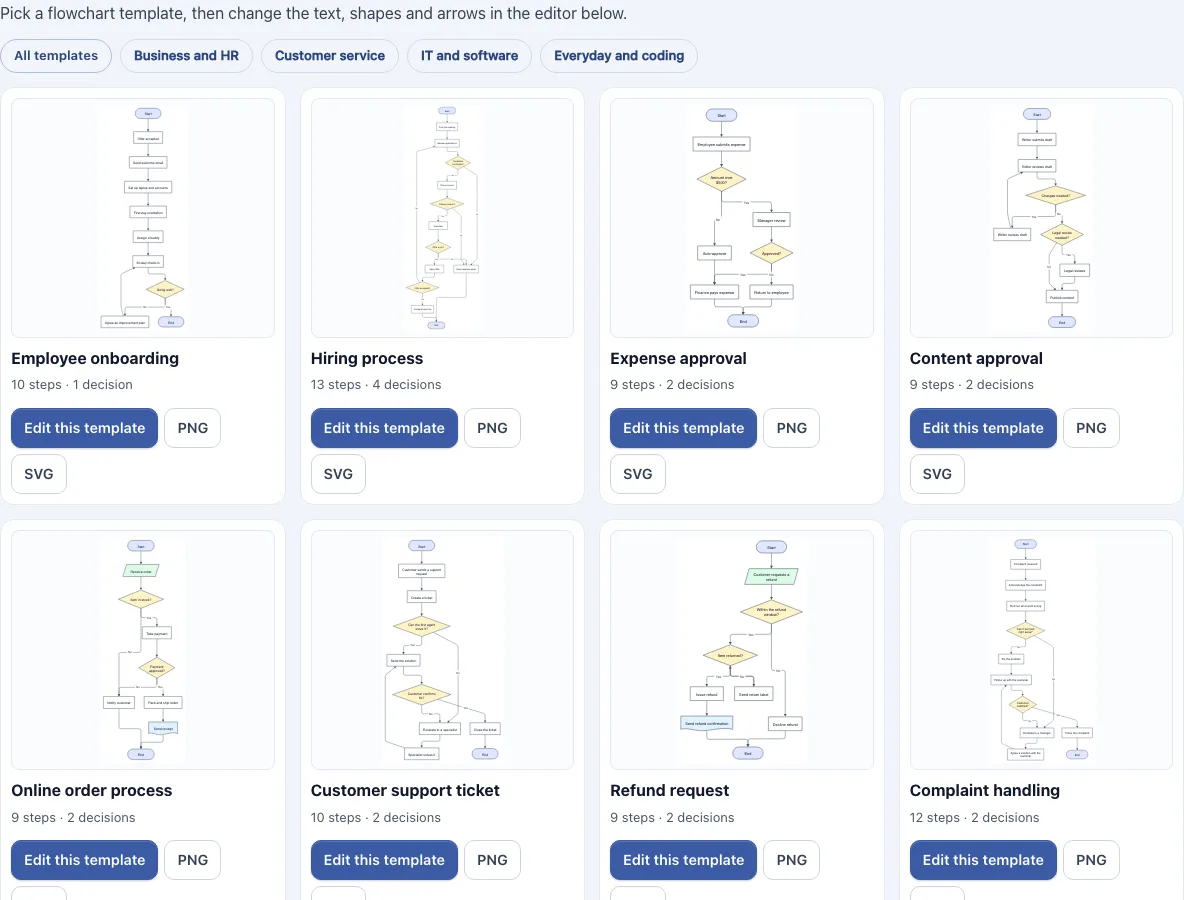
Pick one of 16 ready-made flowcharts, edit it in the editor below and download it as PNG, SVG or PDF.
This flow chart template gallery has 16 ready-made flowchart templates, with flowchart examples for business, customer service, IT and everyday processes. Pick one, edit its steps and arrows in the editor below the gallery, and export the result as an image or vector file. It is free, runs in your browser and needs no sign-up.
The templates fall into four groups: business and HR, customer service, IT and software, and everyday and coding examples. Each one is a complete process with made-up steps, so you can start from something close to your own process instead of a blank page. Every card shows a preview, the number of steps and decisions, and buttons to edit or download it. Use the filter buttons above the gallery to narrow the list to one group.
How to use the flowchart templates
- Scroll to the gallery. Choose a group with the filter buttons, or leave All templates selected.
- Look at the preview on a card and check the title and the number of steps and decisions.
- Click Edit this template. The template loads into the editor below the gallery, and the page scrolls down to it.
- Click the Text button to see the flowchart as text, with one step per line. Change the wording to fit your process. Editing the text redraws the chart.
- For a decision, double-click an arrow to rename its label, such as changing “Yes” to “Approved”.
- If your changes leave the layout messy, click Auto layout to arrange the chart top to bottom or left to right.
- Open the Export menu and choose PNG image, PNG at 2x, PNG at 4x (print quality), SVG (vector), PDF or Copy image to clipboard.
To download a template without editing it, click PNG or SVG on its card. The Templates menu in the editor toolbar also lists all 16 templates if you want to switch to another one.
Your work is saved automatically in this browser. The Saved menu lets you save a named copy in this browser, start a new, empty diagram, or copy a link to the diagram. The whole diagram is stored inside the link after the # sign, so it is not sent to a server.
Flowchart examples: what do typical flowcharts look like?
A typical flowchart is a set of boxes joined by arrows, read from a start point to an end point. Each box is one step, and each arrow shows which step comes next.
Most flowcharts follow the same pattern. They begin at a start oval, move through steps in order, and stop at one or more end ovals. Where the process has to choose between two paths, a diamond asks a question and sends a separate arrow for each answer. A login check, for example, starts, asks whether the password matches, and then either continues or returns the user to try again. Good flowcharts keep arrows moving in one direction where possible, so the reader can follow the process without guessing.
When you adapt a template, keep the pattern and change the content: replace the step names with your own, add the decisions your process really has, and give each decision arrow a clear answer. Remove steps that do not apply instead of leaving them in, because a flowchart is easier to follow when every box is there for a reason.
What do the flowchart shapes in a template mean?
Each shape in a flowchart tells the reader what kind of step it is. The standard shapes in this editor are:
- Start / End (oval): where the process begins or finishes.
- Process (rectangle): an action or step.
- Decision (diamond): a yes or no question, with one arrow for each answer.
- Input / Output (parallelogram): information that comes in or goes out, such as a form submitted or a result given.
- Document (rectangle with a wavy bottom): a step that produces a written record.
- Subprocess (rectangle with double side lines): a step that has its own flowchart elsewhere.
- Connector (small circle): a link to another part of the chart, used to avoid long arrows.
The first two arrows out of a decision are labelled Yes and No automatically. If a decision has more than two answers, rename the arrows to match. Templates use made-up steps, so check that each shape still matches the step you put in it.
Frequently asked questions
Where can I find a flow chart template to edit?
The gallery at the top of this page has 16 templates, which you can filter by group. Click Edit this template on any card to open it in the editor below.
How do I edit a flowchart template?
Load the template with Edit this template, then change the steps in the Text panel or on the chart itself. Rename decision arrows by double-clicking them, and use Auto layout if the chart needs tidying.
Can I download a flowchart template as PNG, SVG or PDF?
Yes. The PNG and SVG buttons on each card download that template unchanged. After editing, the Export menu also offers PDF, along with PNG at 2x or 4x for print. Exports have a white background and no watermark.
Is this flowchart template tool free, and do I need an account?
Yes, it is free and needs no sign-up. It runs in your browser.
Is my flowchart uploaded anywhere?
No. Your work is saved in your own browser, and nothing is uploaded. Share links store the diagram inside the link itself, after the # sign.
Can I use these templates for my company’s real process?
You can, but check every step first. The templates are example processes with made-up steps, and real rules such as refund windows or approval limits differ between organizations.
Can I use my flowcharts commercially?
Yes. Everything you make here is yours to use for personal, school and commercial work, including reports, slides, books and printables you sell. No credit is required. The only thing you may not do is copy the tool or the site itself to run a competing service; see the terms.
Related tools
- Flowchart maker: Use it when you want to start a flowchart from a blank page instead of a template.
- Data flow diagram maker: Use it when you need to show how data moves between systems, rather than the order of steps.
- Decision tree maker: Use it when your main goal is to map a series of yes or no choices down to outcomes.
- Flowcharts and process diagrams: Use it to browse all the flowchart tools in this group.
- All Diagram Smith tools: Use it to browse every tool on the site.