Flowchart Maker
Drag shapes or type your steps as text, connect them with arrows and download the finished flowchart as PNG, SVG or PDF.
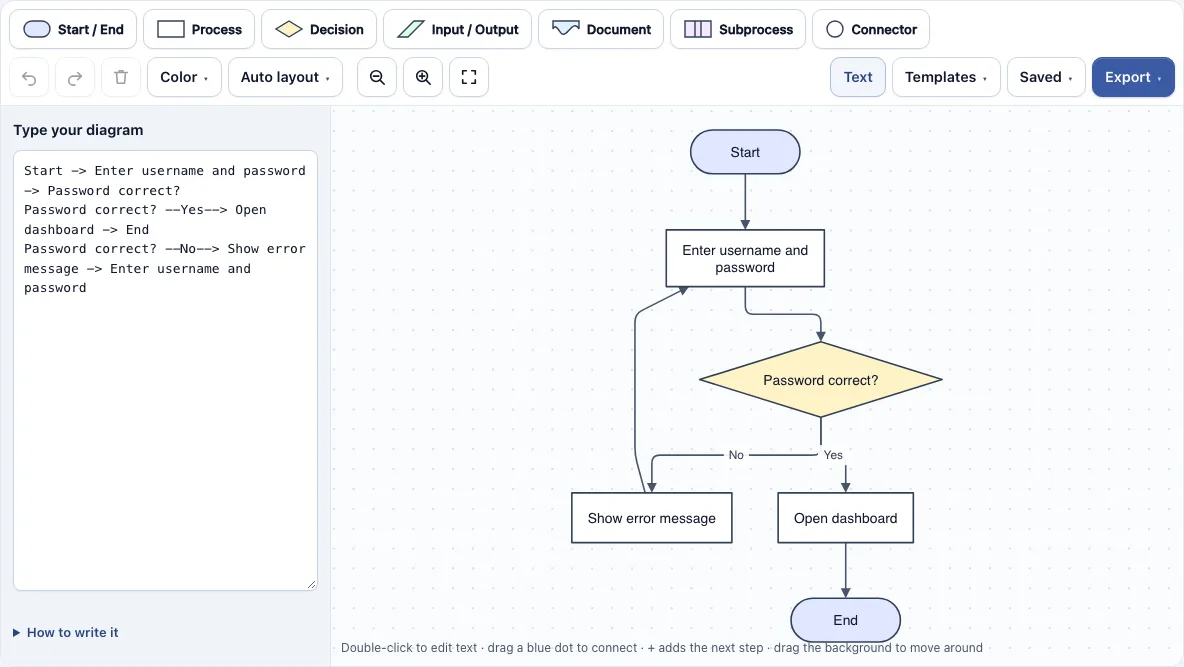
How to use the Flowchart Maker
- Open the page: a sample login check is already on the canvas. To start fresh, choose a new empty chart in the Saved menu.
- To change the sample, double-click any shape or arrow, type the new text, and press Enter to save.
- To add a shape, select a shape and choose a button in the toolbar, such as Process or Decision. The new shape is added after the selected one and joined with an arrow.
- To extend the chart, select a shape and click one of its four + buttons. A new connected step appears on that side, and you can type its text straight away.
- To connect two existing shapes, drag one of the small blue dots on the edge of a shape onto another shape.
- To move things around, drag shapes or drag the empty background. Use Auto layout in the toolbar to arrange the whole chart top to bottom or left to right.
- Arrows out of a decision start as Yes and No; double-click one to rename it.
- To export or share, open the Export menu for a PNG, SVG or PDF, or open the Saved menu to copy a link that holds the full diagram.
Useful shortcuts include Ctrl+Z to undo, Ctrl+D to duplicate a selected shape, and Ctrl/Cmd plus the mouse wheel to zoom. On a phone, the toolbar shows icons only, so tap a shape to select it and use the + buttons to add steps.
How do you make a flowchart?
A flowchart is made by listing the steps of a process in order, drawing each step as a shape, and joining the shapes with arrows that show which step comes next. Start with one oval marked Start, then add a box for each action and a diamond wherever the process asks a question. Finish at an oval marked End.
Write each box as a short verb phrase, such as “Check password” or “Send confirmation email”. This tells the reader exactly what happens at that step. If a step contains two or three actions, split it into separate boxes so each one can be checked on its own.
What is a flow diagram?
A flow diagram is a general name for any drawing that shows the steps of a process, the order they happen in, and the direction of flow. Arrows show where the process goes next. Flow diagrams are used to explain systems, procedures and decisions in a way that is easier to read than a paragraph of text.
A flowchart is the most common kind of flow diagram. It uses a fixed set of shapes with agreed meanings, which is what makes it readable by people who have never seen your particular process before.
What do the flowchart shapes mean?
The shapes follow a common convention, and the ISO 5807 standard uses the same basic symbols. Each shape tells the reader what kind of step it is, so the diagram does not need a long key.
- Oval (terminator): the start or end of the process.
- Rectangle: a process step or action.
- Diamond: a decision with two or more exits.
- Parallelogram: data going in or out, such as a form being filled in or a report being printed.
- Rectangle with a wavy bottom: a document.
- Rectangle with double side lines: a predefined process or subprocess that is described somewhere else.
- Small circle: a connector that continues the flow at another point on the page or on another page.
Using the right shape matters because a reader who sees a diamond expects a question. If you put an action in a diamond, the chart becomes confusing.
What makes a flowchart easy to follow?
A readable flowchart has one clear start and at least one clear end. If the chart has no end, it is unclear when the process stops, and readers have to guess. Loops are fine, but they should still lead somewhere, such as back to a step that repeats or out to an End shape.
Every decision should be a yes/no question, and every exit from it should be labelled. Usually this means one arrow marked Yes and one marked No. Flow should run in one main direction, either top to bottom or left to right, so readers always know where to look next. Keep arrows from crossing where you can, and rearrange shapes until the path is simple to trace with a finger. A chart that a reader can follow without asking questions is doing its job.
Frequently asked questions
Is this flowchart maker free, or do I need to sign up?
It is free, and you do not need an account or sign-up. The tool runs in your web browser, so you can start drawing as soon as the page opens.
Can I export a flowchart as PNG, SVG or PDF?
Yes. The Export menu offers PNG, PNG at 2x, PNG at 4x for print quality, SVG as a vector file, and PDF. You can also copy the image to the clipboard. Exports are cropped to the diagram, have a white background, and carry no watermark.
Can I make a flowchart from text?
Yes. Open the text panel and type one step per line. Consecutive lines are joined by arrows, and a line ending in a question mark becomes a decision. The diagram redraws as you type, so you can see the result immediately.
Does the flowchart maker work on a phone?
It does. On a phone the toolbar shows icons only. Tap a shape to select it, use the + buttons to add steps, and drag the background to move around the chart.
Is my diagram uploaded anywhere?
No. Nothing you draw is sent to a server, and everything happens on your device. Your work is saved automatically in your browser, and the link you copy holds the diagram inside it after the # sign, so the diagram is not uploaded when you share it.
Will my flowchart still be there when I come back?
Yes, as long as you open the page in the same browser. Your work is saved automatically in that browser and returns when you reopen the page. You can also save named copies in the same browser, which helps if you are working on several charts.
Can I start from a ready-made example?
Yes. The Templates menu includes an online order process, an expense approval, a lamp troubleshooting chart, a loop that adds the numbers 1 to N, and the login check the editor opens with. You can change any template to fit your own process.
Can I use my flowcharts commercially?
Yes. Flowcharts you make here are yours to use for personal, school and commercial work, including reports, slides, books and printables you sell. No credit is required. The only thing you may not do is copy the tool or the site itself to run a competing service; see the terms.
Related tools
- Flowcharts and process diagrams: use this when you want to compare all the tools in this group before choosing one for a process diagram.
- Pie chart maker: use this when you need to show parts of a whole rather than the steps of a process.
- Charts and graphs: use this when you have numbers to chart rather than steps to connect.
- Software and network diagrams: use this group for data flow, database and network diagrams, which have their own symbols.
- Timelines, org charts and business frameworks: use this group when the steps belong on a timeline or the people in an org chart.
- All Diagram Smith tools: use this to browse every tool on the site.