Eisenhower Matrix Template
Add your tasks; each lands in Do first, Schedule, Delegate or Eliminate from its ticks and due date.
Free · runs in your browser · nothing is uploaded
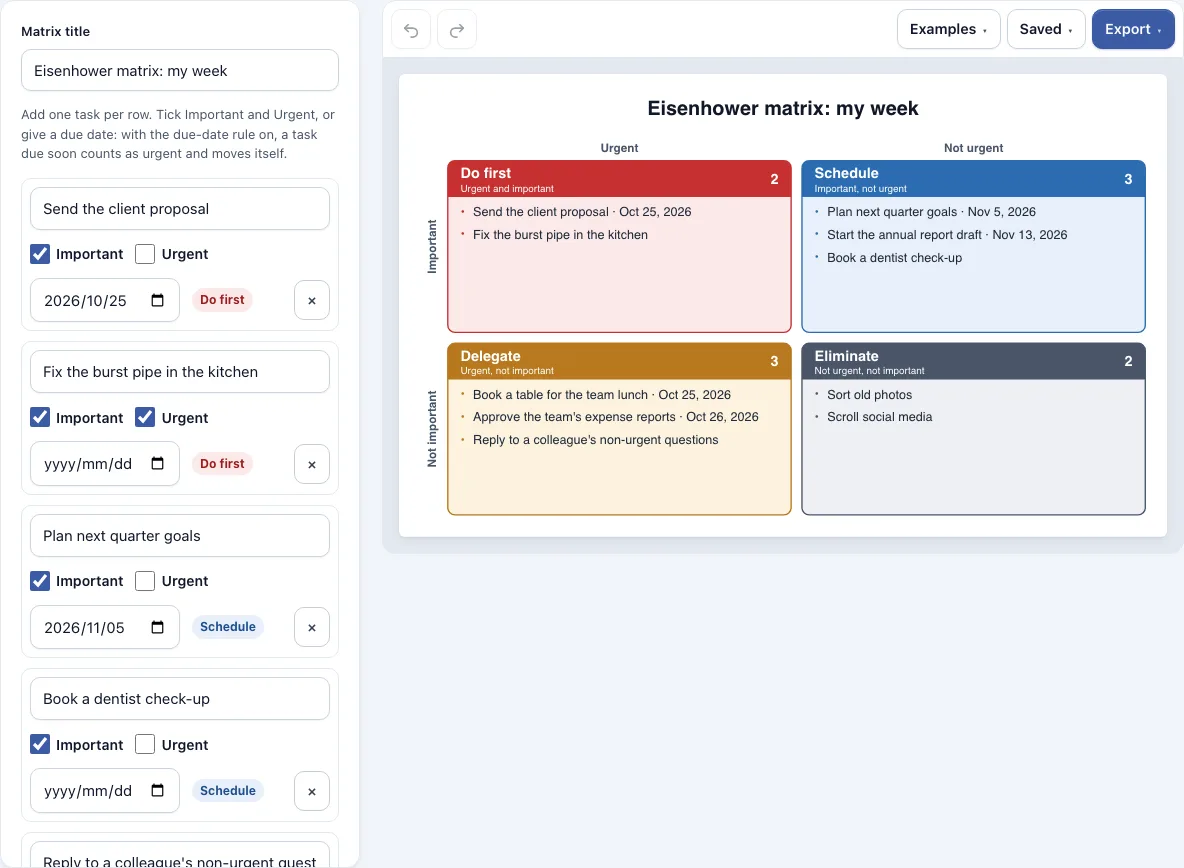
How to use the Eisenhower Matrix Template
Start with the sample week already on the page, or choose a different starting point from the Examples menu.
- Open the Examples menu and pick A busy week, Student: exam week or Blank matrix.
- Edit the task text in any row, or add a row for each new task.
- Tick Important if the task matters to your goals or outcomes.
- Tick Urgent if the task needs action now. Leave it unticked if you want the due date to decide.
- Enter an optional due date, such as 2026-04-15 or Apr 15, 2026.
- Check which box each task landed in. Each quadrant title shows how many tasks it holds.
- Open the options to set a chart title, show or hide the Urgent and Important labels, or hide due dates.
- Open the Export menu and save as PNG, PNG 2x, PNG 4x, SVG or PDF, or use Copy image to clipboard.
To load many tasks at once, paste a list with one task per line. Optional columns after each task, separated by tabs or commas, hold Important (yes/no), Urgent (yes/no) and a due date. A list copied from Excel or Google Sheets works, and a first line starting with Task is skipped. Pasting replaces the current tasks, and the limit is 60. Undo and Redo sit in the toolbar. The page saves your latest work in this browser, and the Saved menu keeps named copies.
What is the Eisenhower matrix?
The Eisenhower matrix is a grid built on two yes-or-no questions: is a task urgent, and is it important? The answers place every task in one of four boxes, so you can see what needs attention now, what to plan, what to hand off, and what to drop. It is also called the Eisenhower box or time management matrix. The method is named after Dwight D. Eisenhower, the US general and president, who is credited with the idea.
How are tasks sorted into the four quadrants?
Each task is one row with its text, an Important tick, an Urgent tick and an optional due date. The matrix reads those ticks, and the due date too, to choose a box. Important and urgent work goes to Do first, important work that is not urgent goes to Schedule, urgent work that is not important goes to Delegate, and everything else goes to Eliminate.
| Box | Position | Placed when | Sample task from the busy week |
|---|---|---|---|
| Do first | Top left | Important and urgent | Fix the burst pipe in the kitchen |
| Schedule | Top right | Important, not urgent | Plan next quarter goals |
| Delegate | Bottom left | Urgent, not important | Approve the team’s expense reports |
| Eliminate | Bottom right | Neither | Scroll social media |
The due-date rule works through the option “Treat tasks due soon as urgent”, which is on by default. A task counts as urgent if you tick Urgent, or if its due date falls within a set number of days from today. The default is 2 days, and the box accepts 0 to 60, where 0 means today or overdue. Overdue tasks are always urgent. Turn the option off to use only the Urgent tick.
Take 10 March as today. A task due 12 March is two days away, so it counts as urgent. If it is also important, it lands in Do first. A task due 13 March is three days away, so it is not urgent and stays in Schedule. The same rule explains a few other cases. An important task due tomorrow lands in Do first without an Urgent tick. That same task due in 12 days stays in Schedule until its date gets close, which is the purpose of the box: finish important work before it turns urgent. A task that is not important but due in two days lands in Delegate.
Inside each box, tasks are sorted by due date, earliest first. Tasks without a date come after them, in the order you typed them. The date appears beside the task, and an overdue task shows (overdue) in dark red. The option “Show due dates in the matrix” hides the dates if you only want the task text.
Frequently asked questions
How do I decide if a task is urgent or important?
Ask whether the task has a deadline that is close or already past. If it does, it is urgent. Then ask whether it moves a goal you care about or has real consequences if you skip it. If it does, it is important. In the tool, tick the boxes yourself, or leave Urgent blank and let a due date within your chosen number of days decide.
Is there a free Eisenhower matrix template for Excel or Google Sheets?
This page offers a free matrix that runs in the browser, not a spreadsheet file. Download CSV saves Task, Important, Urgent, Due and Quadrant for every task, and that file opens in Excel or Google Sheets. You can also paste a list copied from either program back into the matrix.
How do I print an Eisenhower matrix?
The page has no print button. Export the matrix as a PDF, or as a PNG at 2x or 4x from the Export menu, and print that file. The grid is drawn in four colors on a white background with no watermark, so it prints clearly in color or grey.
How many tasks should go in Do first?
The tool sets no target for any box. It caps the whole matrix at 60 tasks, and each quadrant title shows its count, so you can see whether Do is crowded. If Do keeps filling up, look for important tasks with dates still weeks away and plan them into Schedule earlier.
Can I use my Eisenhower matrix commercially?
Yes. Everything you make here is yours to use for personal, school and commercial work, including reports, slides, books and printables you sell. No credit is required. The only thing you may not do is copy the tool or the site itself to run a competing service; see the terms.
Related tools
- SWOT chart template: use it when you want to compare strengths, weaknesses, opportunities and threats rather than sort tasks.
- Gantt chart maker: use it to lay out tasks along a timeline once you know what needs scheduling.
- RACI matrix maker: use it to decide who is responsible, accountable, consulted or informed for each piece of work.
- Timeline maker: use it to show key dates and milestones in order.
- Decision tree maker: use it to compare choices by expected value before you decide which task or project to take on.
- Business diagram tools: browse all the timelines, org charts and business frameworks in this group.