Data Flow Diagram Maker
Draw processes, data stores, external entities and data flows. The tool checks every process for a flow in and a flow out as you draw.
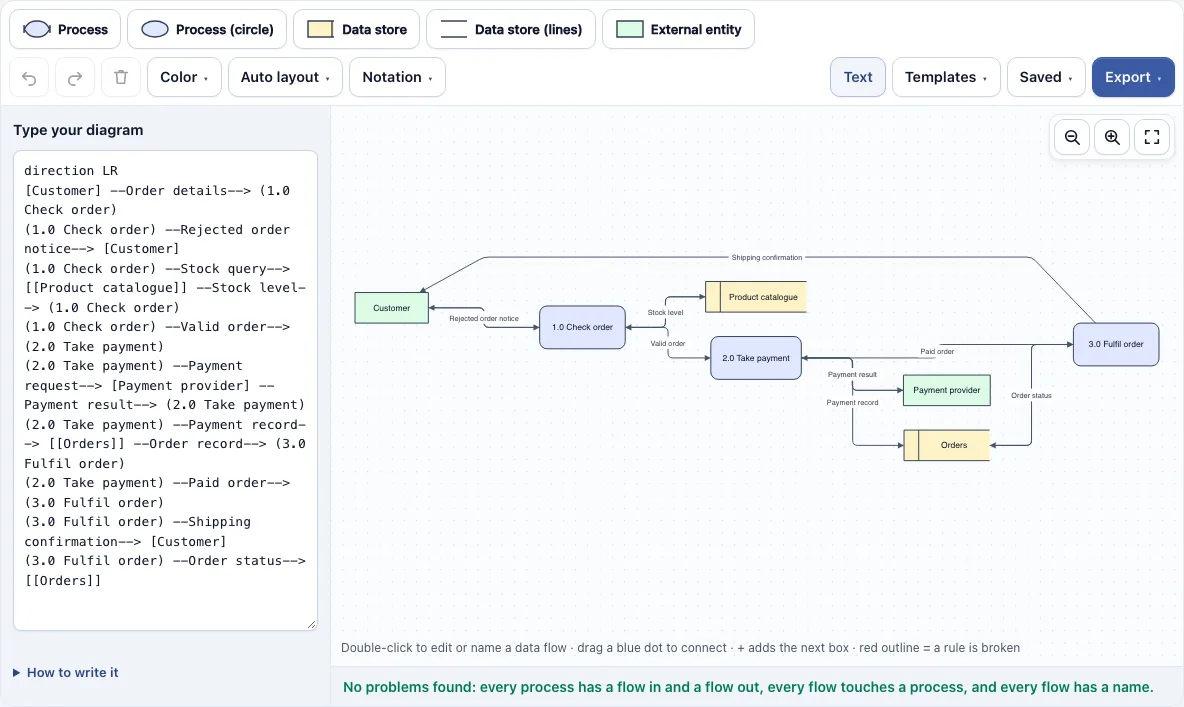
How to use the Data Flow Diagram Maker
- Open the tool. It loads with a level 1 online order processing example. To start over, choose Saved, then Start a new, empty one. To begin from a starter diagram, open the Templates menu.
- Pick a symbol from the toolbar: Process (a Gane-Sarson rounded rectangle), Process (circle) (a Yourdon-DeMarco bubble), Data store (a Gane-Sarson open box), Data store (lines) (a Yourdon-DeMarco pair of parallel lines) or External entity.
- To add a connected box, click one of the four + buttons next to a selected box.
- To create a data flow, drag a blue dot from one box onto another. Each arrow is a data flow.
- Double-click an arrow to name it, such as “Order details”. Double-click a box to edit its text.
- Use Auto layout to arrange the diagram, or the Notation menu to switch all symbols between the two sets.
- Read the checks under the canvas. Problems appear in red text, and the boxes involved get a red outline. Keep editing until the tool says every process has a flow in and out, every flow touches a process, and every flow has a name.
- Open the Export menu to save a PNG, SVG or PDF, or to copy the image.
The Text button lets you write the diagram as text, one flow per line. To share, choose Copy link to this diagram in the Saved menu; the link holds the diagram, so nothing is sent to a server.
What is a data flow diagram?
A data flow diagram is a graphical view of how information moves through a system. It shows what data goes where, but it leaves out the order of steps and the decisions, which are the job of a flowchart. A DFD is built from four parts: processes, which transform data; data stores, which hold data at rest; external entities, which are sources or destinations outside the system; and data flows, the named arrows that carry data between them.
Processes are usually numbered in larger diagrams, such as 1.0, 2.0 and 3.0, so that readers can match a sub-process to the step it belongs to. Each data flow should have a name that describes the data it carries.
A DFD answers the question “what does the system do with the data?”. It does not show who does the work, how long it takes or in what order steps happen, so keep it to data and leave timing to a flowchart.
What are the rules of a data flow diagram: black hole and miracle processes?
Two rules catch most mistakes. A process cannot create data from nothing. If a process has output flows but no input flow, it is called a miracle. A process that takes in data but has no output flow is called a black hole. Every process needs at least one flow in and at least one flow out, which is why the tool flags both cases.
Other rules set out where flows can go. A data flow must connect a process to an external entity or to a data store. A flow that goes from entity to entity, from entity to store, or from store to store is not allowed, because data has to pass through a process. External entities sit outside the system, and data stores only hold data. Finally, name every flow. An unnamed arrow tells the reader nothing about what is moving.
Frequently asked questions
What are the symbols of a data flow diagram: Gane-Sarson vs Yourdon-DeMarco?
Gane-Sarson draws processes as rounded rectangles and data stores as rectangles open on the right with a compartment on the left. Yourdon-DeMarco draws processes as circles and data stores as two parallel lines. External entities are plain rectangles in both notations. Use one notation consistently, and use the Notation menu to switch every process and store at once.
How to draw a data flow diagram?
Start with a context diagram: one process for the whole system, the external entities around it, and the flows between them. Then break the central process into numbered sub-processes, add data stores where data is kept, and name every flow. In this tool, add boxes from the toolbar, drag blue dots to connect them, and fix any red warnings under the canvas.
What is the difference between a context diagram and a level 1 DFD?
A context diagram (level 0) shows the whole system as one process in the middle, with external entities around it. A level 1 diagram splits that single process into its main sub-processes, numbered 1.0, 2.0 and so on, and adds data stores. The Templates menu includes both kinds, such as Context diagram: online shop and Level 1: order processing.
Is the data flow diagram maker free?
Yes. The tool is free and needs no sign-up. PNG, PDF and SVG exports have no watermark.
Can I start from a data flow diagram example?
Yes. The tool opens with a level 1 online order processing example. The Templates menu also has Level 1: library loans and Level 1: cash withdrawal (Yourdon symbols), and all four starters pass the diagram checks.
Is my diagram saved or uploaded?
Your work is saved automatically in your browser, and nothing is uploaded. Named copies are kept in the same browser through Save a copy in this browser in the Saved menu.
Can I use my data flow diagrams commercially?
Yes. Everything you make here is yours to use for personal, school and commercial work, including reports, slides, books and printables you sell. No credit is required. The only thing you may not do is copy the tool or the site itself to run a competing service; see the terms.
Related tools
- Flowchart maker: Use it to draw step-by-step processes with decisions, when you need the order of actions rather than how data moves.
- Flowchart templates: Browse ready-made flowchart starters if you want a head start on a process diagram.
- Decision tree maker: Use it to map choices and their outcomes as branches.
- Flowcharts and process diagrams: Browse all the flowchart and process tools in this group.
- All Diagram Smith tools: Find every free diagram tool in one place.