Block Diagram Maker
Draw blocks and signal arrows; the tool checks every signal path and marks feedback loops in green.
Free · runs in your browser · nothing is uploaded
How to use the Block Diagram Maker
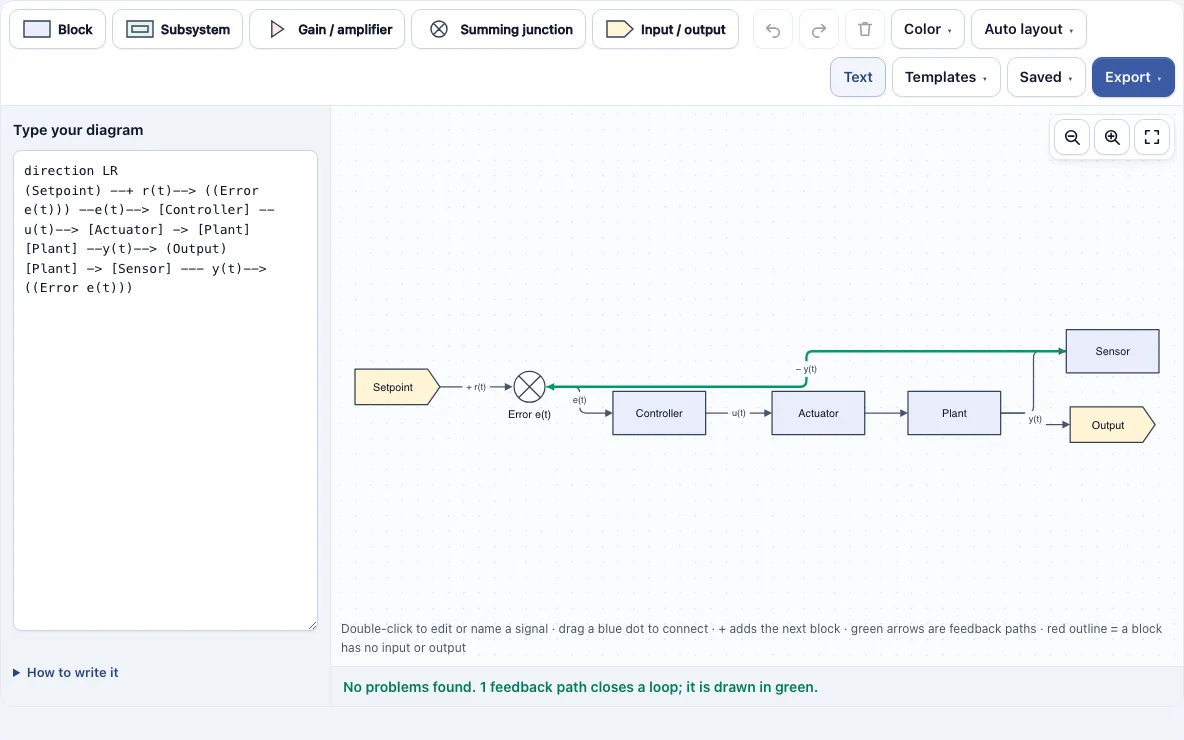
- Open the editor. It loads a sample closed-loop control system with Setpoint, Error e(t), Controller, Actuator, Plant, Sensor and Output. To begin with a different example, open the Templates menu and pick one.
- Rename a block by double-clicking it. Press Enter to save, Shift+Enter for a line break, or Esc to cancel.
- Add symbols from the toolbar: Block, Subsystem, Gain / amplifier, Summing junction or Input / output.
- Connect blocks by dragging one of the small blue dots at a block’s edge onto another block. Drop it on empty space to create a new connected block, or use the four + buttons on a selected block.
- Name a signal by double-clicking its arrow and typing, for example u(t), 3.3 V or I2C.
- Read the message under the drawing. Any red outline marks a problem with that symbol’s connections.
- Click Auto layout to arrange blocks left to right or top to bottom and reroute the arrows, or drag blocks yourself; they snap to a 10-pixel grid.
- Open the Export menu and choose PNG, PNG 2x, PNG 4x, SVG or PDF, or use Copy image to clipboard.
Delete removes the selection, Ctrl+D duplicates it, and Ctrl+Z and Ctrl+Shift+Z undo and redo. Shift+drag selects several blocks, and Ctrl/Cmd with the mouse wheel zooms. If you prefer typing, the Text button opens a box that stays in sync with the drawing.
What is a block diagram?
A block diagram is a simplified drawing of a system in which each part is a box and each connection is an arrow showing the direction a signal or quantity travels. It leaves out wiring detail and shows only how the parts affect one another. Engineers use it to plan a design and to find missing links early.
Signals travel along the arrows, and each block turns its input into an output, so you read the diagram by following arrows from input to output. A block diagram does not show wires, circuit layout or physical position. Because it hides that detail, the same drawing can be read by a controls engineer, an audio technician or a software team. A closed-loop control system is a typical example: a setpoint enters a summing junction, the error goes to the controller, the actuator and plant act on it, and a sensor reads the output back to the junction.
What do the symbols in a block diagram mean?
Each symbol tells the reader what kind of element sits at that point. A block is a plain rectangle for a part or function. A gain triangle scales a signal, a summing junction adds or subtracts signals, and an input/output pentagon marks where a signal enters or leaves the system. A subsystem has a double outline to show that it stands for a part that could be drawn as its own smaller diagram.
| Symbol | Shape in the tool | Text syntax | Meaning |
|---|---|---|---|
| Block | Plain rectangle | [Block] or a bare word | A part or function |
| Subsystem | Rectangle with a second inner outline | [[Subsystem]] | A part that stands for its own smaller diagram |
| Gain / amplifier | Triangle pointing right | Scales a signal by a factor | |
| Summing junction | Circle with a cross | ((Summing junction)) | Adds or subtracts incoming signals |
| Input / output | Pentagon arrow shape | (Input or output) | A signal or quantity entering or leaving the system |
A summing junction needs at least two inputs, and each input arrow carries its sign. For the loop above, name the setpoint arrow + r(t) and the feedback arrow − y(t). The label for a gain triangle or summing junction appears below the symbol, so write the gain value or the junction’s role there.
Frequently asked questions
What is the difference between a flowchart and a block diagram?
A flowchart shows the steps of a process, often with decision diamonds that branch on yes or no. A block diagram shows the parts of a system and how signals pass between them, with no decision steps. Use a flowchart to describe what happens next in a procedure, and a block diagram to describe how hardware or a control loop is organized.
How do I check a block diagram for missing connections?
Draw the diagram and read the message under the drawing. The tool outlines in red any block, subsystem or gain with no incoming or no outgoing arrow, and it flags a summing junction with fewer than two inputs or no output. Input/output terminals are exempt, so draw one wherever a signal enters or leaves the system. When nothing is wrong, the message says so.
What is a feedback path in a block diagram?
A feedback path is an arrow that carries an output or measured signal back to an earlier point in the loop, usually a summing junction, so the system can correct itself. The tool finds these automatically and draws them thick and green, on screen and in every export. A diagram with no loop has no green arrow, and the Closed-loop control system template is the only one of the six with a feedback path.
Where can I get block diagram examples?
Open the Templates menu to load six diagrams that each pass the signal-path check. They are a closed-loop control system, an embedded system with a microcontroller, an audio signal chain, a digital communication link, a linear power supply and a software build and release pipeline. Loading one can be undone, so you can change it to fit your own system.
Can I use my block diagram commercially?
Yes. Everything you make here is yours to use for personal, school and commercial work, including reports, slides, books and printables you sell. No credit is required. The only thing you may not do is copy the tool or the site itself to run a competing service; see the terms.
Related tools
- Flowchart maker: use it when you need to show decisions and steps in a process rather than parts and signals.
- Data flow diagram maker: use it to show how data moves between processes, stores and external entities.
- Network diagram maker: use it to lay out devices and the links between them on a network.
- Sequence diagram maker: use it to show the order of messages exchanged between components over time.
- Software and network diagrams: see every tool in this group in one place.
- All Diagram Smith tools: browse the full set of diagram tools.