Activity Diagram Maker
Draw a UML activity diagram with decisions, parallel flows and partitions, and let the checker catch missing guards and unmatched forks. Export PNG, SVG or PDF for free.
Free · runs in your browser · nothing is uploaded
Activity Diagram Maker is a free, browser-based tool for drawing UML activity diagrams. You place actions, decisions, fork and join bars, and start and end nodes, then connect them into a flow. The tool runs in your web browser and needs no account. Your diagram is not uploaded anywhere. The latest version saves automatically in this browser, so you can come back to it later.
You can begin with one of eight templates, such as Order processing or ATM cash withdrawal, or write the diagram as plain text and let it draw the shapes. Swimlanes (called partitions in UML) group the steps by the person, team or system that performs them. When the diagram is finished, you can export it as PNG, SVG or PDF, or copy the image to the clipboard.
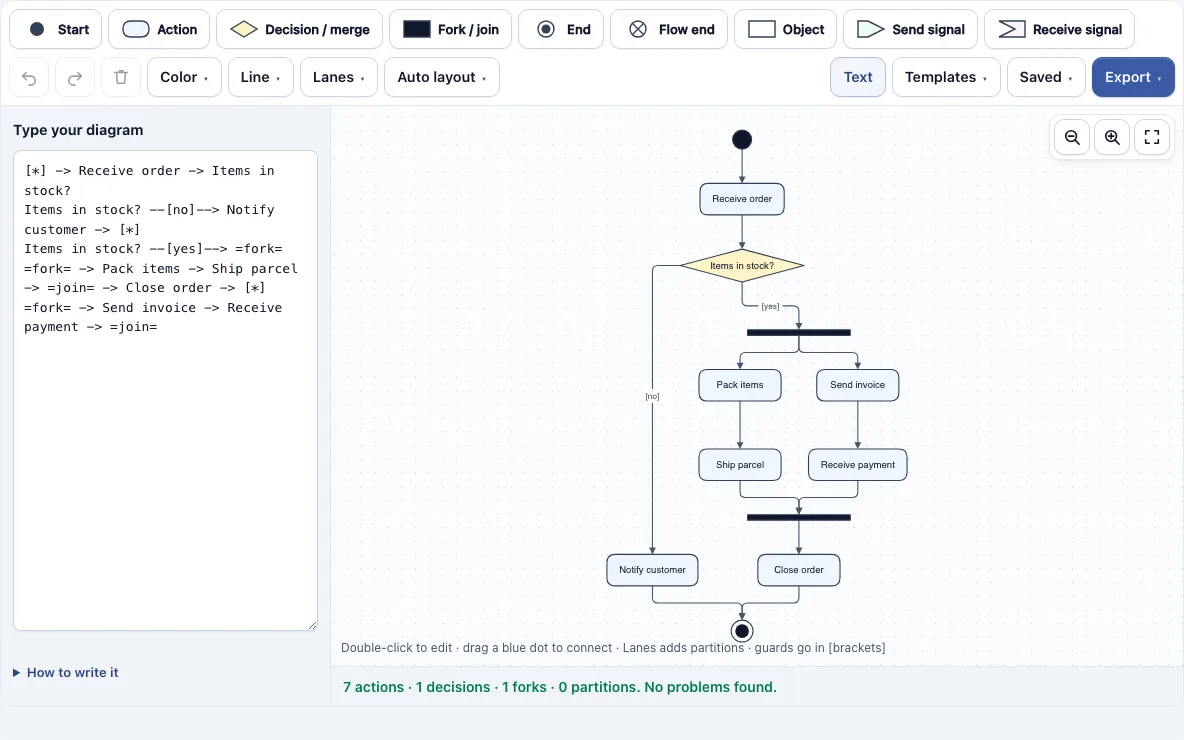
How to use the Activity Diagram Maker
- Choose a template from the eight provided, or start with an empty canvas. Order processing is the default.
- Place a Start shape (the black dot) and at least one End shape (the bullseye). A diagram needs exactly one start node.
- Add actions, the rounded boxes. Double-click a shape to type its text. Press Enter to save, or Shift+Enter for a line break.
- Add a Decision shape (the diamond). The first two arrows you draw out of it are labelled [yes] and [no]; double-click an arrow to write another guard in square brackets.
- For work that runs at the same time, add a Fork / join bar (the black bar) and draw one arrow into it and several out. Tidy up turns the bars across the flow: horizontal when the diagram runs down, vertical when it runs to the right.
- Connect shapes by dragging one of the small blue dots on an edge onto another shape. You can also use the + buttons around a selected shape to add the next connected shape.
- Open the Lanes menu and choose Add swimlanes. Drag each action into the partition where it belongs.
- Watch for red outlines. They mark problems the tool has found, and you can fix them before exporting.
- Open the Export menu to save a PNG, SVG or PDF.
Ctrl+Z undoes, Ctrl+C and Ctrl+V copy and paste, and the Saved menu keeps named copies and share links.
What is an activity diagram?
An activity diagram is a UML diagram that shows the steps of a process, the order they run in, and where choices or parallel work happen. It uses actions, decisions, fork and join bars, and start and end nodes. Teams use it to describe workflows such as order processing, a login with lockout, or borrowing a library book.
The diagram follows a few rules. It has exactly one start node, and that node has exactly one outgoing flow. It needs at least one end node, and an end node has no arrows leaving it. Every arrow out of a decision carries a guard in square brackets, so a reader knows which path applies. An action should lead onward to an end rather than stop in the middle.
The tool applies these rules as you draw, which is why a diagram that passes its checks is easy for someone else to follow.
Activity diagram symbols
Activity diagram symbols are a short set of shapes: a black dot for the start, a rounded box for an action, a diamond for a decision or merge, and a black bar for a fork or join. A bullseye marks the end of the whole activity. Every symbol listed below appears on the toolbar.
| Symbol | Name on the toolbar | What it means |
|---|---|---|
| Black dot | Start | The initial node, where the flow begins |
| Rounded box | Action | One step of work |
| Diamond | Decision / merge | Picks one flow from several by guard, or brings alternatives back together |
| Black bar | Fork / join | Splits one flow into concurrent flows, or waits for all of them |
| Bullseye | End | Activity final: ends the whole activity |
| Circle with a cross | Flow end | Flow final: ends one flow only |
| Rectangle | Object | An object used or produced, such as an invoice |
| Box with a pointed end | Send signal | Sends a signal to another part of the process |
| Box with a notch | Receive signal | Waits for a signal |
Fork and join bars lie across the flow. They are horizontal when the diagram runs down and vertical when it runs to the right. Object and signal shapes are optional, and you only need them when the diagram must show data or messages.
Frequently asked questions
What is an activity diagram with swimlanes?
Swimlanes, called partitions in UML, are bands that show which role or system performs each action. In the Lanes menu, choose Add swimlanes or Add a lane, rename each one, and then drag actions into the lane they belong to. Lanes can run as rows or as columns.
Activity diagram vs flowchart: what is the difference?
A flowchart is a general-purpose picture of steps and decisions. An activity diagram is a UML notation with defined symbols for concurrency, signals, objects and partitions. Use a flowchart for simple step-by-step logic and an activity diagram when parallel work or responsibilities need to be shown exactly.
What is the difference between a fork and a decision?
A decision sends the flow down one exit, chosen by its guard, so only one path runs. A fork splits one flow into several flows that run at the same time, and a join waits until all of them have arrived. A merge uses the same diamond as a decision and brings alternative flows back together without waiting.
What does the activity check look for?
Red outlines mark shapes that break a rule, so you can fix them while the diagram is open. The live checks cover a missing or extra start node, an end node with outgoing flows, actions that never reach an end, decision exits without a [guard], and bars that are neither a fork nor a join. They also flag more forks than joins and nodes that cannot be reached from the start. When nothing is wrong, a summary line such as “7 actions · 1 decisions · 1 forks · 0 partitions” appears instead.
Can I use my activity diagrams commercially?
Yes. Diagrams you make here are yours to use for personal, school and commercial work, including specifications, course material and client projects. No credit is required. The only thing you may not do is copy the tool or the site itself to run a competing service; see the terms.
Can I type an activity diagram instead of drawing it?
Yes. In the text panel, write ‘[] -> Receive order’ to start the flow and ‘Close order -> []’ to end it, with one action per line. A line ending in ‘?’ becomes a decision, so ‘In stock? –[yes]–> Pack items’ draws a labelled branch. Use ‘=fork=’ for a bar, with the same name meaning the same bar, and ’lane: Customer’ to start a partition. ‘direction LR’ lays the diagram out to the right.
Related tools
- Swimlane Diagram Maker: use it when the main goal is to show ownership of steps across teams or roles.
- State Diagram Maker: use it to show the states an object moves through and the events that cause each move.
- Use Case Diagram Maker: use it to show what users can do with a system at a high level.
- Flowchart Maker: use it for a simple process diagram that does not need UML notation.
- Sequence Diagram Maker: use it to show the order of messages between objects over time.
- Data Flow Diagram Maker: use it to show how data moves between processes, stores and external parties.
- Flowchart Templates: use it to browse ready-made starting points before drawing your own.